A software conflict or a missing permission is the most common reason a webcam shows a black screen. It’s usually safe to keep your device plugged in while you perform these checks. To confirm the cause, look at your camera’s status light; if it’s off, the computer doesn’t see the device at all, but if it’s on, the camera is active but blocked by software.
Signs your camera is blocked
When your camera shows a black screen, the issue often stems from a conflict with another application or a setting in your operating system. The following table helps you identify what is happening based on the symptoms you notice.
| What you notice | What it usually means | What to do first |
|---|---|---|
| Light is off | Device not detected | Unplug and replug |
| Light is on | App is using it | Close other apps |
| Only one app fails | Permission is denied | Check app settings |
| Image is gray | Driver is outdated | Update device driver |
| Image flickers | Connection is loose | Check the cable |
| Error code visible | System fault | Restart the computer |
A black screen often indicates that your hardware is active, but the data stream is being intercepted or blocked before it reaches your video software. If the status light glows steadily, your hardware is likely functioning, but a background process has claimed the input.
Check your system tray for hidden icons that might be running stealthy recording tools. Sometimes, a browser tab left open from a previous meeting remains active in the background, effectively hijacking the feed. If you see a gray screen instead of total blackness, the camera is likely initializing but failing to render the image due to a communication timeout.
Safety: Inside a mains-powered machine, the parts behind the outer cover can hold a dangerous electrical charge even after it has been unplugged — that’s why they sit behind a cover. Opening the housing, or testing or replacing anything behind it, is a job for a qualified technician, never a home repair.
Fixing a webcam showing a black screen
The most frequent cause for a black screen is that another program is already using your camera. Most operating systems allow only one application to access the camera hardware at a time. If you have a video meeting app open while also trying to use a browser-based tool, the second one will fail to display an image.
To test this, close every application that might use the lens, including browsers, chat apps, and security software. Once everything is closed, open only the one app you need. If the image appears, you have confirmed a conflict.
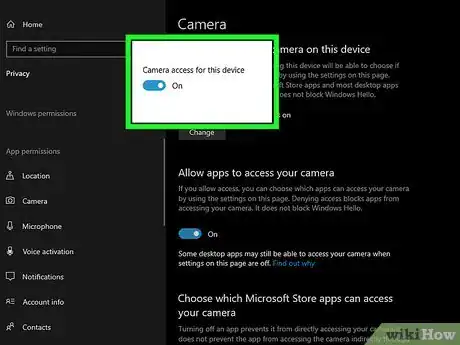
If it remains black, check your privacy settings. On Windows, go to the Privacy & security settings to ensure that the “Camera access” toggle is turned on for the specific app you’re trying to use. If the toggle was off, the camera will remain dark regardless of your other settings.
Permissions often reset after major system updates. If you recently updated your operating system, check these settings even if your camera worked yesterday. Some apps require a restart after you toggle their permissions to recognize the hardware. If the toggle is already on, try flipping it off and back on to force the system to re-register the connection.
Outdated or corrupted drivers
A driver is the software that tells your computer how to talk to your hardware. If this software is broken or outdated, your computer can’t process the video feed, resulting in a black screen even if the hardware is physically fine. This often happens after a major system update that changes how hardware communicates with the core operating system.
To check this, open your system’s device manager and look for your camera under the imaging or camera section. If you see a yellow warning icon next to the camera name, the driver is likely the culprit. Right-click the camera and choose the option to update the driver automatically.
If that doesn’t work, choose to uninstall the device and then restart your computer. The system will automatically detect the hardware and reinstall a fresh copy of the driver upon reboot. If the screen remains black after the restart, the issue is likely a physical hardware failure rather than a software glitch.
Physical connection and hardware limits
Sometimes the problem is as simple as a loose connection or a physical cover that you forgot to slide open. If you’re using an external USB camera, the cable may have wiggled loose or the USB port might not be providing enough power to the unit. Always plug the camera directly into the computer rather than using a USB hub, as hubs often distribute power unevenly.
If you have a built-in camera, check the lens for a physical privacy shutter. Many modern laptops include a tiny plastic slider that blocks the lens; it’s easy to bump this slider without noticing. If you have checked the shutter and the connection, try testing the camera on a different computer.
If it still shows a black screen on the second device, the camera hardware itself is likely broken. The lifespan of a webcam varies based on the quality of the sensor and how often it’s used, but most basic units eventually wear out after a period of regular operation.
When to stop and get help
You should stop troubleshooting and contact a professional if you encounter any of the following situations:
The camera housing is hot to the touch, which indicates a dangerous electrical short. Internal heat buildup often signals a failing capacitor or a compromised circuit board that can’t be fixed with software resets.
You see a “No device found” error even after trying multiple USB ports and different computers. This persistent failure suggests the internal controller has suffered a total hardware collapse.
The camera cable is frayed or shows exposed wires, creating a risk of electrical shock. Never attempt to splice or tape these lines, as improper connections can cause short circuits that may damage the USB port.
You’re required to open the device casing to fix a loose internal ribbon cable. This voids your warranty and can damage delicate components beyond repair.
If you’re covered by a manufacturer’s warranty, contact their official support department. If the device is out of warranty, an authorized electronics repair shop can determine if a repair is cost-effective or if you need a replacement.
Frequently asked questions
Can I fix a black screen by restarting my computer?
Yes, a simple restart fixes most temporary software bugs that block the camera. It clears the memory and forces all background services to reload, which often resolves conflicts where a hidden process was holding the camera hostage. If the screen is still black after a reboot, the issue is likely a driver or physical setting.
How do I know if my camera is broken?
You can confirm a hardware failure by plugging your webcam into a different computer. If the camera shows a black screen on a second device after you have updated its drivers, the internal sensor is likely dead. If it works on the other computer, the problem is with your original machine’s software settings.
Is it safe to use a third-party driver updater?
No, it’s rarely safe to use third-party tools to update your hardware drivers. These programs often install unnecessary bloatware or incorrect software that can cause more system errors. Always use the built-in update tool provided by your operating system manufacturer to ensure the drivers are compatible and secure.
Why does my camera work in some apps but not others?
This usually happens because specific apps don’t have permission to access your camera in your system settings. Check your privacy panel to see which apps are allowed to use the camera. If an app isn’t on the list, the system will block it from receiving any video feed.
How long should a webcam last?
A high-quality webcam typically lasts for a limited duration with daily use. The sensor and internal components are sensitive to heat and power surges, which can degrade performance over time. If you notice the image quality dropping or frequent black screens, it’s often a sign the hardware is reaching its limit.
Does a USB hub affect my camera?
Yes, a USB hub can cause a black screen if it doesn’t provide enough power to the camera. Many webcams require a steady power supply to keep the sensor active; if the hub is shared with other devices, the camera may fail to initialize. Always connect your camera directly to the main computer port.
Conclusion
If these quick fixes don’t get your video feed working, there might be a physical hardware issue. Don’t worry, though; it’s often just a loose connection or a faulty cable. You should try plugging the camera into a different USB port or another computer to see if it’s finally time for an upgrade.