Privacy settings, driver errors, or physical connection issues are why your webcam isn’t working on windows 11 most of the time. You can often fix this by checking the privacy toggles in the system settings or ensuring the device is correctly plugged into your computer. If these steps don’t help, you may need to update the hardware drivers through the device manager.
Why your webcam isn’t working
The following table summarizes the most frequent causes for camera issues. You should check these in order, starting from the top, as simple software settings are the most common culprits.
| Cause | How common | How to confirm it | Fix it yourself? |
|---|---|---|---|
| Privacy settings | Very high | Check camera access toggle | Yes |
| Loose cable | High | Inspect physical connection | Yes |
| Outdated driver | Moderate | Check device manager status | Yes |
| App permissions | Moderate | Review specific app settings | Yes |
| Hardware fault | Low | Test on another computer | No |
| Software conflict | Low | Restart computer | Yes |
| OS update bug | Very low | Check windows update history | Yes |
Checking system privacy settings
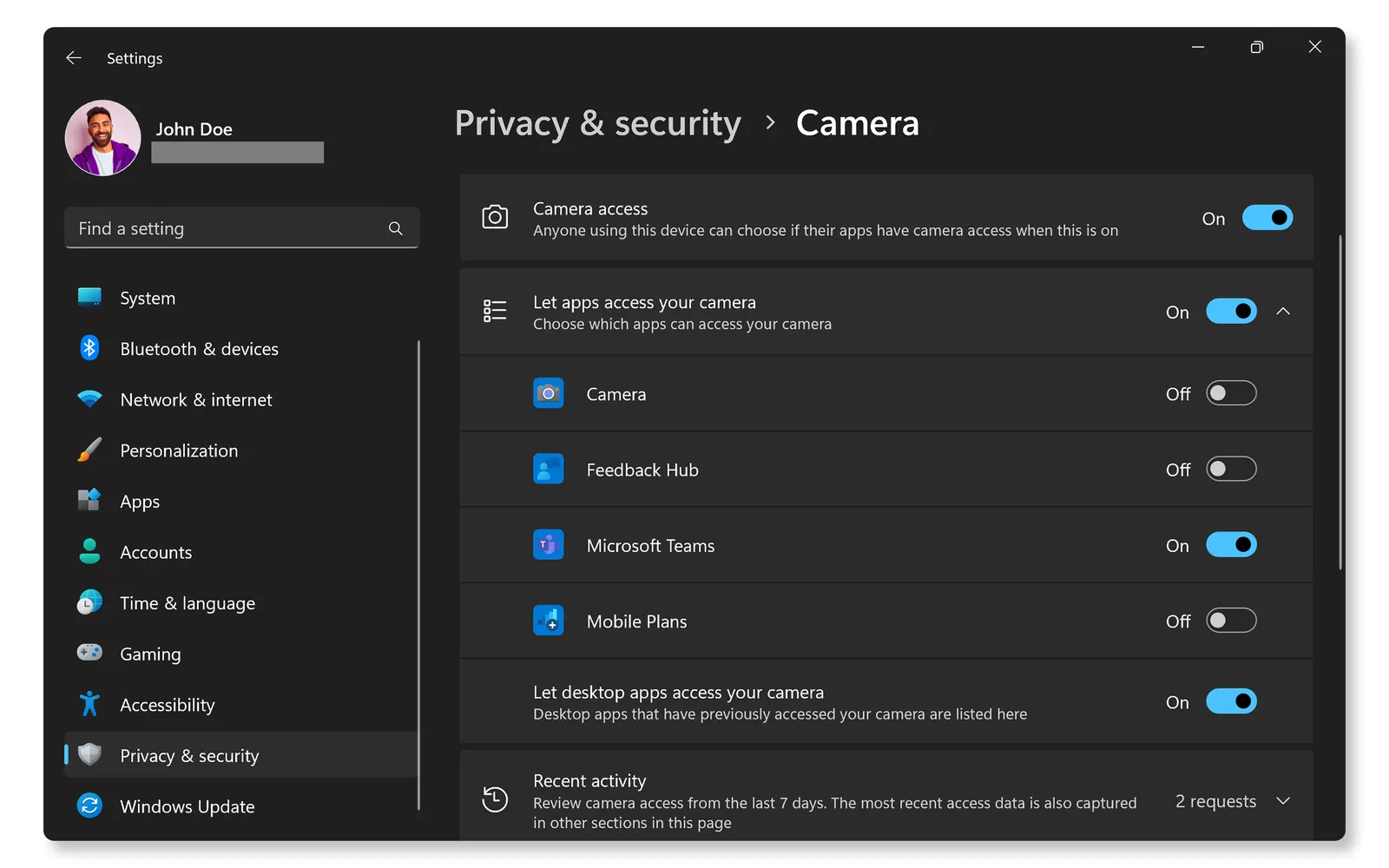
The most common reason for a camera failure is that the operating system has restricted access to the hardware for privacy. Windows 11 includes a master switch that prevents all apps from using the camera, which is often toggled off by mistake. To confirm this, navigate to the Settings menu, select “Bluetooth & devices,” and then click on “Cameras.” If the camera is listed but shows as disabled or access is turned off, the system is blocking the signal.
To fix this, ensure the toggle for “Camera access” is set to “On.” You should also expand the menu to ensure that individual applications, such as your meeting software, have specific permission to use the device. If the camera doesn’t appear in this list at all, the issue is likely a physical connection rather than a software setting. This check takes only a few minutes and requires no special tools or technical knowledge.
Troubleshooting driver and software errors
When the privacy settings are correct but the camera remains unresponsive, the issue often lies with the device drivers. Drivers are small programs that allow your computer to communicate with the hardware. If the driver is corrupted or outdated, the computer won’t recognize the camera. You can verify this by opening the Device Manager, expanding the “Cameras” or “Imaging devices” section, and looking for a yellow warning icon next to your webcam name.
If you see an error, right-click the camera name and select “Update driver.” Choose the option to search automatically for drivers. This process typically takes about 5 minutes to complete, depending on your internet connection speed. If an update is available, Windows will download and install it automatically. If the device manager doesn’t list the camera at all, the hardware may be disconnected internally or completely broken.
Resolving physical and external connection issues
A physical connection failure is a frequent cause when the camera isn’t recognized by the operating system at all. If you’re using an external USB webcam, ensure the plug is pushed firmly into the port. A common mistake is using a faulty USB hub or a port that doesn’t provide enough power for the camera. Always try plugging the camera directly into a different port on the computer to rule out a broken USB slot.
If you’re using a laptop with a built-in camera, check for a physical privacy shutter or a function key on your keyboard. Many laptops have a dedicated key—often marked with a camera icon—that turns the lens off electronically.
If the status light next to your lens is off even when the app is open, press this key to toggle it back on. If the camera remains dark after trying both a different port and the function key, the internal ribbon cable or the camera module itself may have failed.
Rare causes for camera issues
-
Background process conflict: Another application might be locking the camera; try closing all other video programs to see if it frees the device. If the camera remains unresponsive, check the Task Manager to identify hidden background services that might be utilizing the imaging stream without your knowledge.
-
Corrupted system files: Occasionally, core Windows files fail, requiring a system file checker scan. This is best handled by someone comfortable with command prompts. Running the SFC tool helps identify and replace missing or damaged system components that specifically govern hardware communication.
-
BIOS restrictions: Some computers have camera settings hidden in the BIOS menu. This is an advanced area that can stop the system from booting if changed incorrectly. Always verify that the integrated camera toggle is set to “Enabled” if you have recently performed a firmware update.
-
Hardware physical damage: If the camera suffered a drop or liquid spill, internal components might be damaged, requiring a professional repair shop to assess or replace.
What a professional repair involves
Fixing a webcam usually involves either a simple software configuration or a complete hardware replacement. Software fixes are free and only require your time, while hardware repairs can be costly and vary based on the model of your computer. If the camera module inside a laptop is broken, a technician must disassemble the screen bezel, which is a delicate process that risks damaging the display.
The cost of a repair depends entirely on whether the device is under warranty or if you need to buy a replacement part. Before paying for a service, check the documentation that came with your computer to see if you’re still covered by the manufacturer’s warranty.
If you’re not, ask for a quote that includes both the part and the labor. Comparing this price against the cost of a new external webcam is a smart way to decide if the repair is worth the investment.
Frequently Asked Questions
Can I use my phone as a webcam instead?
Yes, you can use your phone as a webcam by installing third-party software that connects your mobile device to your computer via Wi-Fi or USB. This is a common solution if your built-in camera is broken or provides poor video quality for important meetings.
How long should a webcam last?
A webcam typically lasts for a significant period of regular use, provided it isn’t dropped or exposed to moisture. The lifespan varies based on the build quality and the environment, but the internal sensor is durable and rarely wears out from normal daily operation.
Is it safe to leave the camera plugged in?
It’s safe to leave your webcam plugged in at all times, as modern operating systems only power the device when an application requests video. If you’re concerned about privacy, you can use a physical sliding cover or a piece of tape to block the lens when not in use.
What happens if I see a black screen?
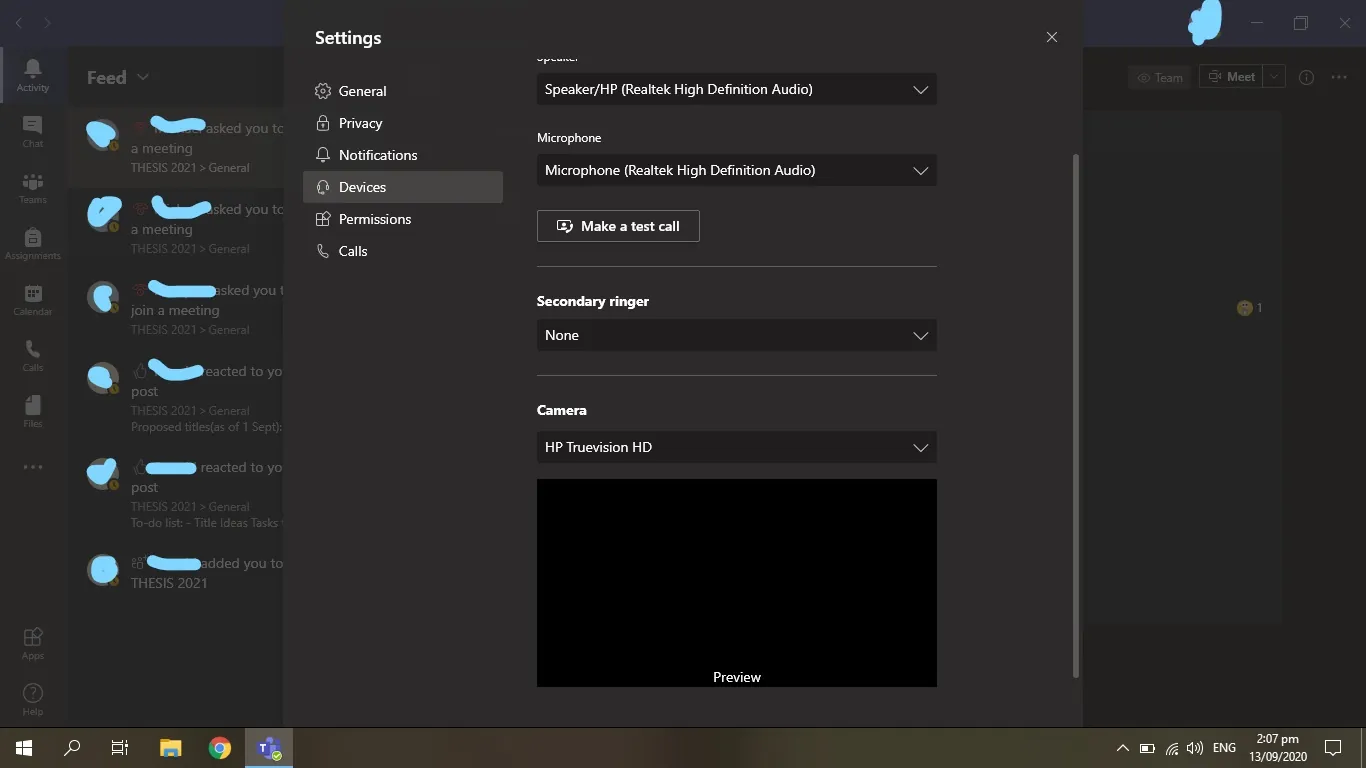
A black screen usually means the application has permission to use the camera, but the hardware isn’t sending a video signal. This often points to a driver conflict or a physical shutter that’s still closed, rather than a total hardware failure.
Does the USB cable length matter?
Yes, the length of the USB cable matters, as very long cables can cause signal loss or power drops that prevent the camera from working. For most webcams, keeping the cable under 6 feet is recommended to ensure the camera receives sufficient power and data bandwidth for high-quality video.
Why does my camera work in some apps but not others?
This happens because Windows 11 manages camera permissions on a per-app basis, meaning you might have granted access to your browser but not to a specific desktop application. Check the privacy settings in the “Cameras” menu to ensure every app you use has the toggle switched to the on position.
Conclusion
If your camera still won’t turn on after these checks, there might be a deeper hardware fault. Don’t worry, though; you can reach out to the manufacturer’s support team for more specific help. They’ll be able to tell you if it’s time for a replacement so you’re ready for your next call.