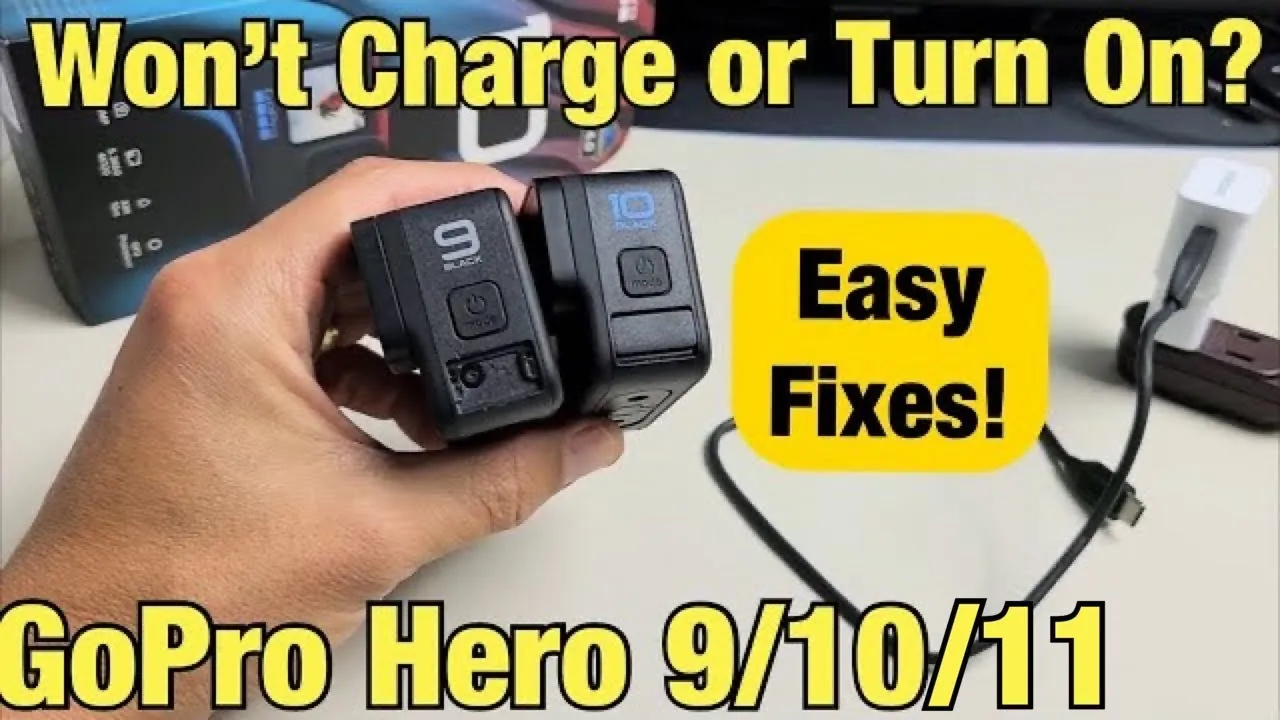
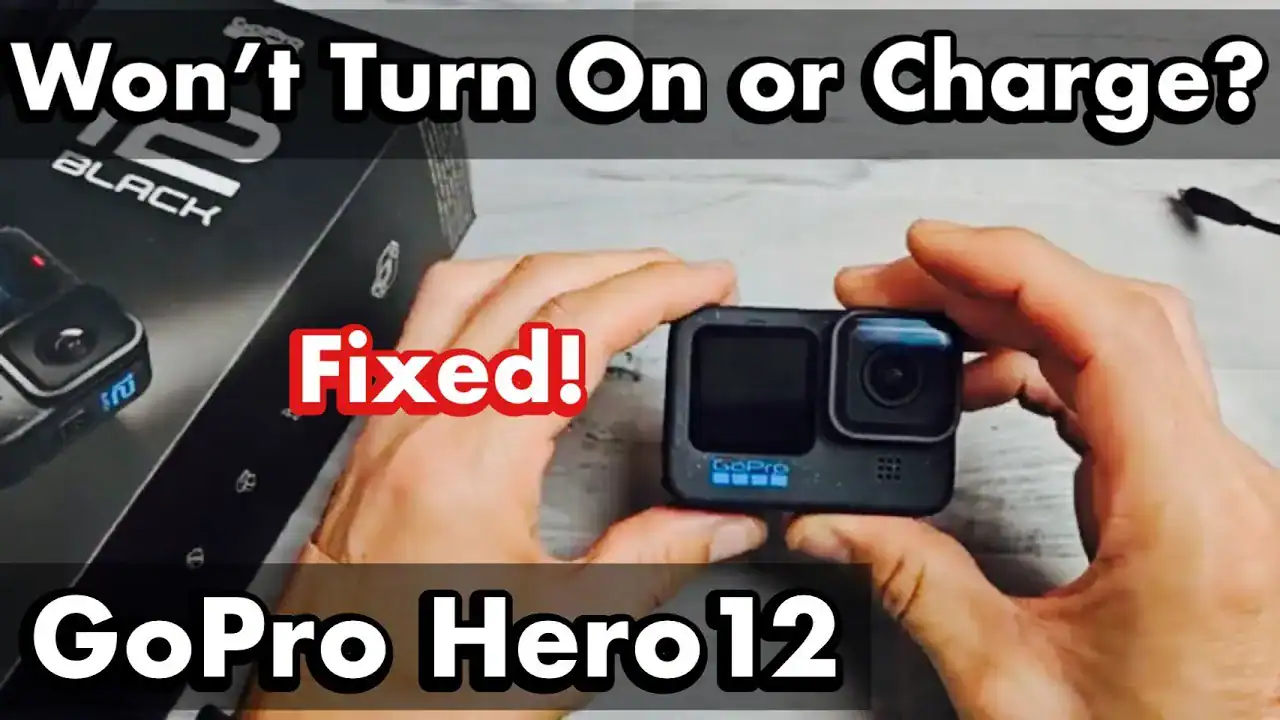
A drained battery or a loose connection is the most common reason why a gopro camera isn’t turning on, accounting for the vast majority of power-related issues. If your device remains unresponsive, the first step is to ensure the battery is properly seated and the camera is connected to a reliable power source. This simple test confirms if the internal components are functional or if the power cell itself is the culprit.
Why your GoPro camera won’t turn on
Determining the source of a power issue requires a systematic check of your hardware. The table below outlines the most frequent culprits and how you can verify them at home.
| Cause | How common | How to confirm it | Fix it yourself? |
|---|---|---|---|
| Drained battery | Very common | Try charging for one hour | Yes |
| Faulty USB cable | Very common | Use a different known cable | Yes |
| Dirty contacts | Common | Inspect for debris or dust | Yes |
| Frozen firmware | Occasional | Perform a manual reset | Yes |
| Damaged port | Rare | Check for bent pins | No |
| Internal failure | Rare | Contact official support | No |
These issues often stem from the high-performance demands of the GoPro processor. When the camera records in high resolutions, it generates significant heat that can accelerate the degradation of battery chemistry.
If your device was stored in a vehicle or direct sunlight, the internal thermal protection may have triggered a lockout. This safety feature prevents the unit from drawing power to avoid permanent circuit damage. Always allow the chassis to reach room temperature before attempting a forced restart. This simple pause often resolves what appears to be a total hardware failure.
Exhausted or Faulty Battery Packs
A battery that has lost its ability to hold a charge is the primary reason for a device that stays dark. Lithium-ion batteries naturally degrade over time and with heavy use, especially if stored in extreme temperatures. If you have kept your camera in a hot car or a freezing garage, the chemistry inside the cell may have failed permanently.
To test this, remove the battery from the camera and plug the device into a wall outlet using a stable, high-output power adapter. If the camera fails to turn on while connected to a power source, the battery may be fully depleted or faulty. If the camera still fails to start, the issue is internal or related to the charging hardware.
Always use a GoPro recommended charger to ensure the power delivery meets the specific voltage requirements for your model. If you’re using a third-party charger, ensure it provides at least 5V and 1A, as lower outputs will often fail to wake a completely depleted camera.
Cable and Charging Port Obstructions
A damaged or incompatible cable is a frequent source of frustration. Many users mistakenly assume their cable is working because it fits the port, but a frayed internal wire can prevent the necessary power flow to reach the camera’s mainboard. If your cable has visible kinks or the plastic casing is split, replace it immediately to avoid potential short circuits.
Inspect the USB-C port on the camera body for lint, dust, or moisture. If you carry your camera in a pocket or bag, debris can easily get trapped inside, creating a physical barrier that stops the pins from making contact.
Use a clean, dry toothpick or a blast of compressed air to gently clear the port. If you see bent pins or a loose housing, don’t attempt to force a cable into the port, as this can cause permanent damage to the motherboard.
Firmware and Software Freezes
Sometimes the camera is powered on but the operating system has become unresponsive, making it appear dead. This often happens after an interrupted update or a sudden power loss during recording. If the device feels warm but the screen remains black, a manual reset is the most effective way to force a reboot.
To reset the device, remove the battery and the SD card, then wait for 30 seconds. Reinsert only the battery and press the mode button for 10 seconds to see if the status lights flicker or the screen activates.
If the camera starts, reinsert the SD card to ensure it wasn’t causing a boot loop. If the camera stays unresponsive despite these steps, the internal software may be corrupted, and you’ll need to reach out to the manufacturer for a firmware recovery tool.
Rare Hardware Failures
- SD Card Corruption: A damaged memory card can sometimes prevent the camera from booting; try removing it entirely to see if the device powers on.
- Water Damage: Exposure to saltwater or high humidity can cause internal corrosion, which usually shows as discoloration on the battery contacts.
- Mainboard Failure: A short circuit on the internal board is a rare but terminal issue that requires professional repair services.
- Button Damage: If the power button feels mushy or doesn’t click, the physical switch might be broken and require a professional parts replacement.
If you suspect internal water damage or a broken mainboard, stop all attempts to power the device. These issues require specialized tools and a controlled environment to fix safely. Attempting to open the sealed housing yourself will void your warranty and likely cause further damage to the sensitive waterproof seals.
What a Repair Usually Demands
Fixing a power issue generally involves simple troubleshooting rather than complex repairs. If the problem is the battery, you can resolve it by simply purchasing a new pack, which is a minor investment compared to the cost of a new camera. If the USB cable is the culprit, the cost is even lower, similar to replacing a standard phone charging cord.
When the issue requires professional attention, the expense depends on your warranty status and the specific model you own. You should always check the official support page for your serial number to see if your device is eligible for a replacement or a discounted repair.
Avoid unauthorized third-party shops, as they often lack the proprietary parts needed to maintain the camera’s waterproof integrity. Always request a written quote before committing to any service, and compare that figure against the current market price of a replacement unit.
Frequently asked questions
Can I use my phone charger to power my GoPro?
Yes, you can use a standard phone charger, provided it outputs at least 5V and 1A. Using a charger with lower specs will result in very slow charging or the camera failing to power on entirely. Check the small print on your charger block to verify its power output before connecting your device.
How long should I charge a dead battery?
You should charge a completely dead battery for at least two hours before attempting to turn the camera on. If the status light doesn’t glow after one hour, the battery may be at the end of its lifespan. Always charge the battery inside the camera or in an official dual-slot charger.
Is it safe to leave the camera charging overnight?
It’s safe to leave the camera charging overnight, as modern devices include internal circuits that stop the flow once the battery reaches 100%. However, if you notice the unit becoming excessively hot during this time, disconnect it immediately. Always charge your devices on a hard, flat surface away from flammable materials.
What happens if I use a damaged SD card?
A damaged SD card can cause the camera to hang during the boot process, making it seem like the device is broken. If the camera powers on without the card but fails with it inserted, you must format or replace the card. Always use a high-speed, reputable card to prevent data corruption.
Does the camera need a battery to work?
No, the camera can function while plugged into an external power source without a battery inserted, depending on your specific model. This is a quick way to test if your battery is the cause of the power issue.
Can I fix a broken USB-C port myself?
No, you can’t safely fix a broken USB-C port yourself because it’s soldered directly to the main circuit board. Attempting to bend pins back or use glue can cause a short circuit that kills the camera permanently. If the port is loose or damaged, contact the manufacturer’s official support team for repair options.
Conclusion
If these quick fixes don’t bring your device back to life, it’s time to reach out to the manufacturer’s support team. They’ll help you determine if your warranty covers a replacement or a repair. Don’t worry, you’ll likely be back to capturing your favorite adventures in no time at all.