You can often fix a camera that won’t read an SD card by addressing simple connection issues, minor file corruption, or a locked physical switch instead of assuming a hardware breakdown. When a device displays an error or fails to recognize storage, the problem usually involves a mismatch between the firmware and the card format. By isolating the card, the slot, and the camera settings, you can restore functionality without professional repair.
Key Takeaways
- Always check the physical write-protect switch on the side of the SD card before attempting complex software fixes.
- Cleaning the gold contact points with a dry, lint-free cloth often resolves intermittent read/write errors.
- Formatting the card inside the camera is safer for compatibility than formatting it on a computer.
- Try testing the card in a different device to determine if the fault lies with the storage media or the camera.
- Avoid turning the camera off while the activity light is blinking to prevent file system corruption.
How to Fix a Camera That Won’t Read an SD Card
When your device fails to acknowledge your storage, start by eliminating the most common user errors. Most modern digital cameras use a spring-loaded slot mechanism that requires a firm, audible click to engage the pins correctly.
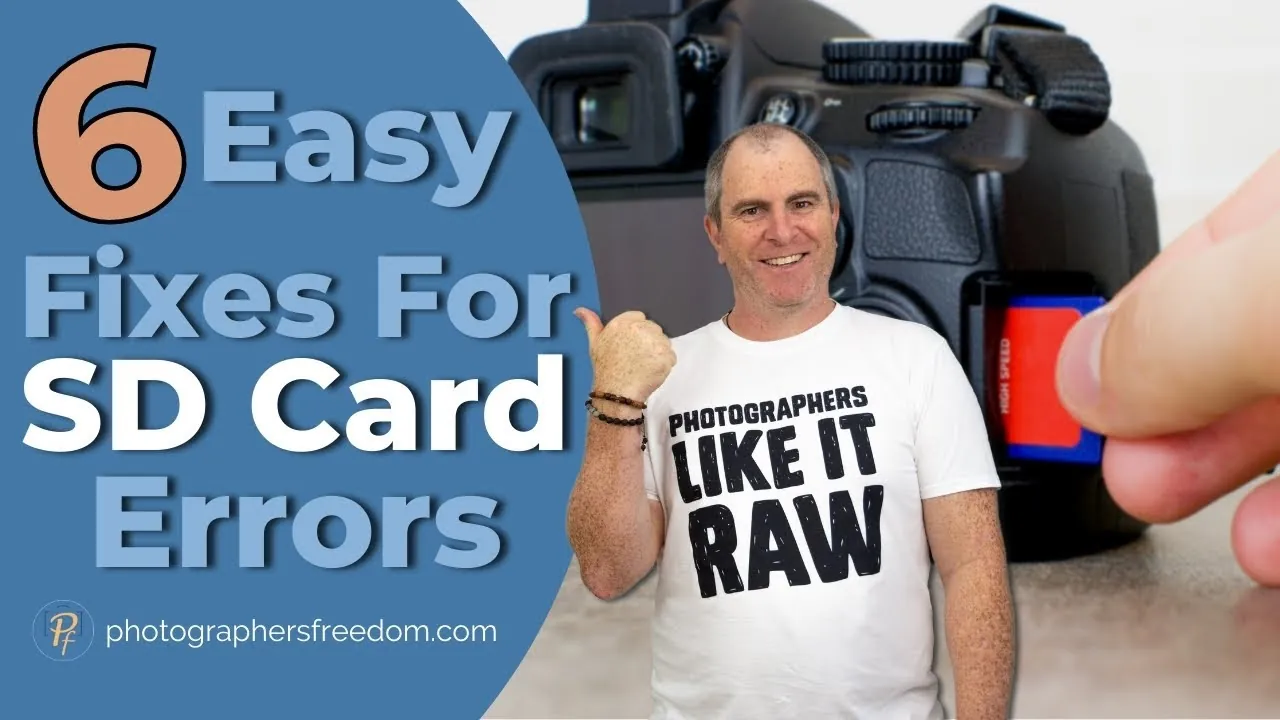
If the card is inserted at a slight angle or isn’t pushed in far enough to seat the spring, the internal contacts won’t align with the card’s terminal pads. Remove the card entirely, inspect the slot for dust or debris, and reinsert it with steady, even pressure until you feel the locking mechanism engage.
Inspecting the Physical Hardware
The physical state of your SD card is just as important as the data stored on it. Check the left side of the card for a small, sliding plastic tab. If this tab is pushed toward the bottom (the “Lock” position), the camera may prevent the device from writing new data or even accessing the card’s directory.
Additionally, look closely at the gold contact strips on the back of the card. If they appear dull, tarnished, or have visible scratches, the camera’s internal pins can’t establish a clean electrical connection.
| Component | Common Issue | Potential Fix |
|---|---|---|
| SD Card | Physical Write-Protect | Slide the tab to the unlocked position |
| Gold Contacts | Oxidation or Dust | Gently wipe with a dry microfiber cloth |
| Card Slot | Bent Pins | Inspect with a flashlight; never use metal tools |
| Card Reader | File System Error | Attempt to read the card on a computer |
Troubleshooting Through Proper Reinsertion
If the card appears clean and unlocked, the issue might be a temporary communication glitch between the card controller and the camera’s processor. Turn the camera off completely and remove the battery. Leave the battery out for at least thirty seconds to allow the internal capacitors to discharge fully.
While the camera is powered down, remove the SD card and then replace the battery. Turn the camera on without the card inserted, navigate to the settings menu, and ensure the firmware is up to date, then insert the card while the camera is active.
Managing File System Compatibility
Camera manufacturers often utilize specific file system formats like FAT32 or exFAT to ensure optimal performance. If you recently used the card in a different device, such as a smartphone or a game console, the card may have been reformatted into a structure your camera can’t interpret.
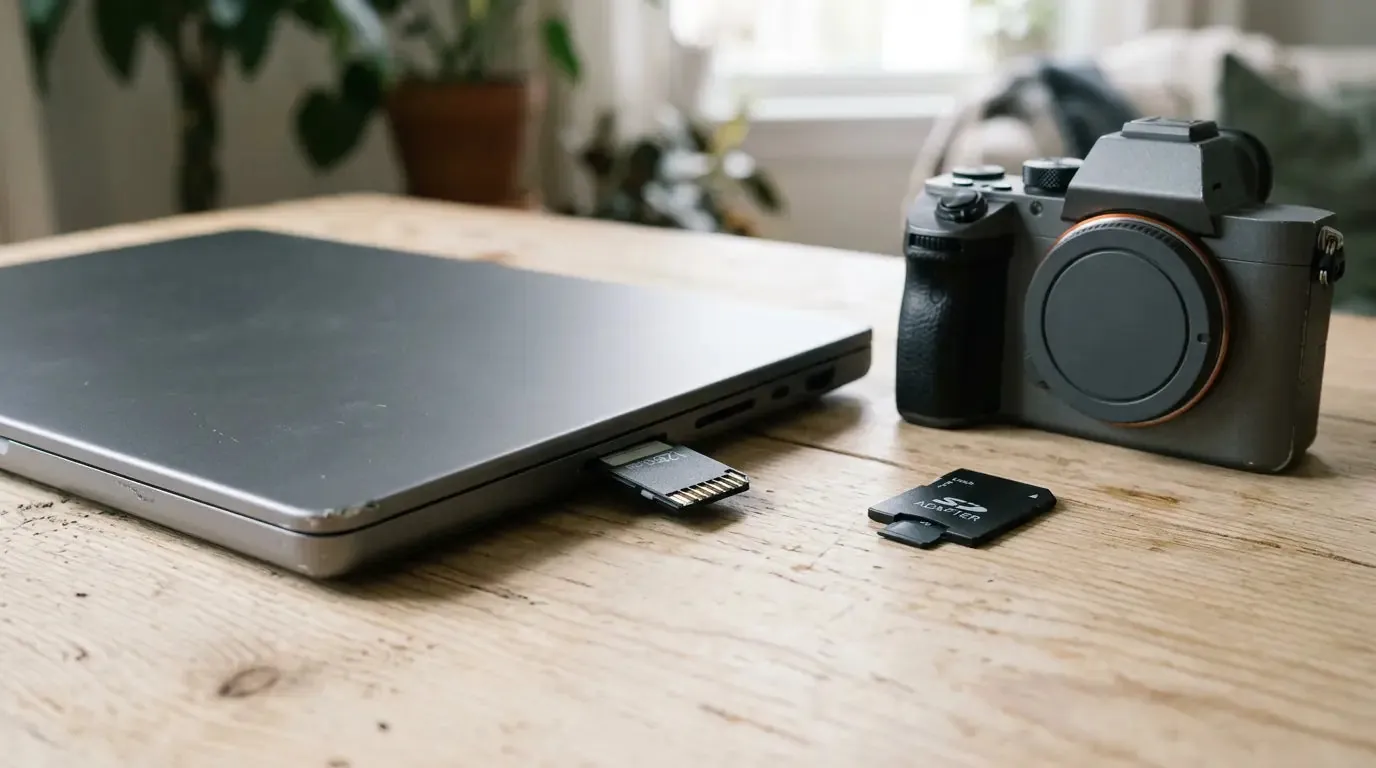
You can verify this by plugging the card into a computer using a dedicated USB card reader. If the computer recognizes the card but the camera does not, the card’s partition table is likely incompatible.
Warning: Formatting a card will permanently erase all data stored on it. Ensure you have backed up your photos and videos to a secure location before proceeding with any formatting operations.
Using the Camera Format Function
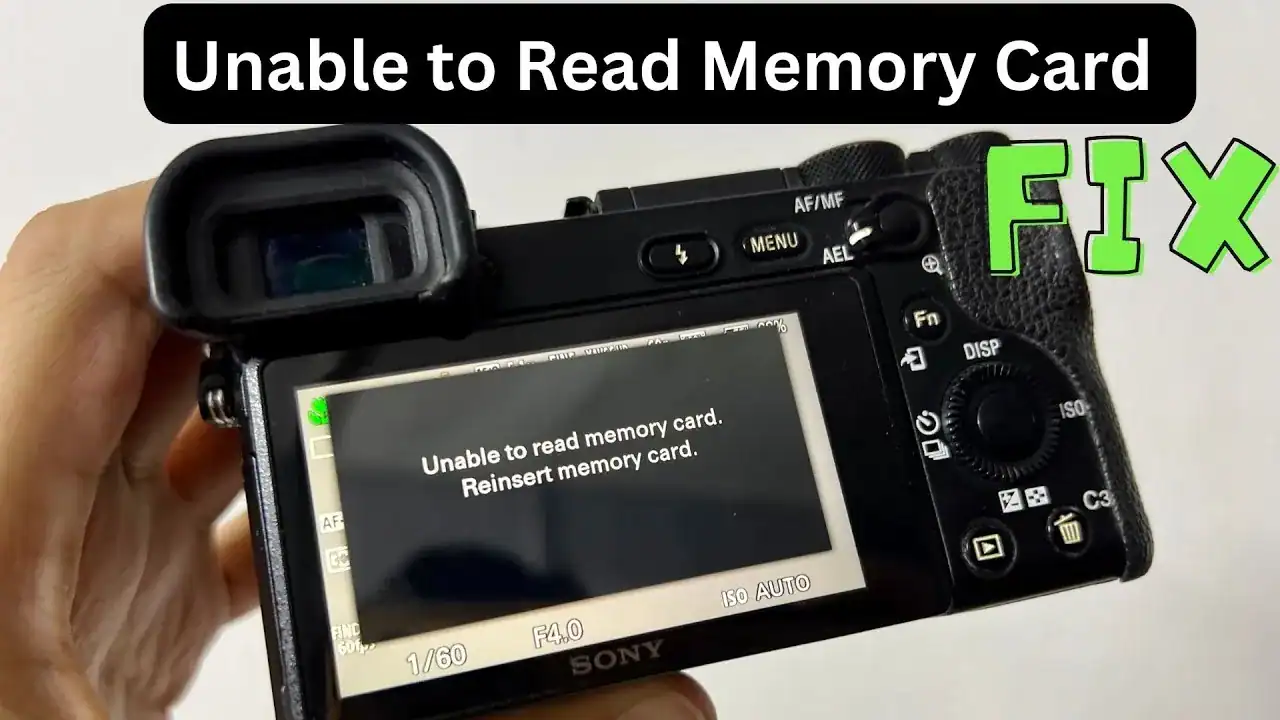
The most reliable way to restore a card is to use the in-camera formatting tool. Cameras are optimized to create the exact directory structure they require for high-speed video recording and burst-mode photography. Access the setup menu on your camera and look for a “Format Card” or “Initialize Media” option.
If the camera can see the card at all, even if it reports an error, it may still allow you to initiate this process. This overwrites the file allocation table and sets the card back to a factory-fresh state compatible with the device.
Why Your Card Might Be Corrupt
Data corruption often occurs when a card is pulled out while the camera is still writing information to the buffer. If the activity indicator light is flashing, the camera is in the middle of a data transfer. Removing the card during this window can scramble the file header, making the card unreadable to the device. If corruption is severe, you may need to use data recovery software on a computer to salvage your files before the card can be reformatted.
Comparing Card Troubleshooting Methods
| Method | Effectiveness | Risk Level |
|---|---|---|
| Physical Cleaning | High | Low |
| Battery Pull | Medium | Low |
| Camera Formatting | High | High (Data Loss) |
| Computer Reformatting | Medium | High (Compatibility Issues) |
Checking for Firmware Version Conflicts
Sometimes, the camera hardware is perfectly fine, but the firmware version is outdated and can’t support newer, high-capacity SDXC cards. If you’re using a high-speed UHS-II or a massive 256GB card in an older camera body, the camera might not know how to address the memory address space.
Check the manufacturer’s support website to see if a firmware update is available for your specific camera model. Installing these updates often expands the range of compatible cards and fixes known bugs related to memory card recognition.
When to Seek Professional Help
If you have tried multiple SD cards and none are recognized by the camera, the fault likely lies with the internal card slot pins. These pins are incredibly delicate and can become bent or broken if a card is forced into the slot at an incorrect angle.
Don’t attempt to straighten these pins yourself using needles or tweezers, as this frequently causes a short circuit that can fry the camera’s mainboard. If the pins look damaged, contact a certified repair center to have the slot module replaced.
Frequently Asked Questions
Why does my camera say card error?
A “card error” message usually indicates that the camera can’t write to the card or read its directory. This is often caused by a corrupted file system, a locked write-protect switch, or a faulty contact connection. Try cleaning the gold pins with a microfiber cloth and ensure the card isn’t locked before attempting to reformat the card through the camera’s internal settings menu.
Can I use a computer to fix a card?
Yes, you can use a computer to diagnose a card. If the computer reads the card but the camera does not, the card may have an incompatible file system format. You can try to reformat the card to FAT32 or exFAT on your computer, though it’s always preferable to perform the final format inside your camera to ensure the directory structure matches the device’s requirements.
Does the SD card brand matter?
Brand quality significantly impacts reliability. Lesser-known, unbranded, or counterfeit SD cards often fail to meet the performance standards required for high-definition video or rapid-fire photography. These cards are prone to sudden data loss and controller failures. Using reputable brands that adhere to established industry standards helps ensure that the card’s controller communicates correctly with your camera’s firmware, preventing most common recognition issues.
Is it safe to format the card?
Formatting is safe for the hardware, but it’s destructive to your data. It completely wipes the card to create a fresh file system. Only format your card after you have successfully backed up all your important photos and videos to a separate hard drive or cloud storage service. Once formatted, the card will behave as if it were brand new.
How do I know if my card is dead?
If you have tested the card in multiple devices, such as a laptop or a different camera, and it remains completely invisible or unreadable, the card’s internal controller has likely failed. Unlike software corruption, which can be fixed with formatting, a failed controller is a permanent hardware death. In this scenario, the card must be replaced, as there’s no way to repair the physical silicon components.
Conclusion
If you have exhausted these troubleshooting steps and your camera still fails to recognize any SD card, the most productive next step is to test a brand-new, high-quality card from a reputable manufacturer. If a new, known-good card is also not recognized, you should contact the camera manufacturer’s official support line to inquire about potential service and repair options for your specific device.