
Fixing a camera memory card error involves a systematic process of isolation, starting with the simplest hardware checks before moving toward digital recovery solutions. Most errors stem from poor electrical contact, file system corruption, or physical degradation of the flash storage medium. By systematically ruling out these variables, you can often restore access to your photographs without losing your data or needing to purchase a new card.
Key Takeaways
- Always attempt to read the card in a different device, such as a laptop or secondary camera, to isolate the hardware fault.
- Clean the gold contacts gently with a soft, dry cloth to remove oxidation or debris causing connection failures.
- Avoid formatting the card immediately, as this process erases all existing data, making recovery significantly more difficult.
- Use reputable file recovery software to extract images before attempting any repair commands on the drive.
- Replace memory cards that show repeated errors, as these are often indicators of impending permanent hardware failure.
Simple Hardware Troubleshooting Steps
Before assuming your data is corrupted, verify that the camera itself isn’t the source of the issue. A common point of failure is the physical pin interface inside the camera’s card slot.
- Turn off the camera and remove the battery.
- Eject the SD card and visually inspect the gold contacts.
- Reinsert the card firmly to ensure it’s seated in the slot.
- Power the camera back on and check for the error message.
- Try a different, known-working memory card in the same camera.
How to Fix a Camera Memory Card Error
If the camera still refuses to recognize the card, the issue likely resides within the file system of the storage device. You can use your computer to attempt a software-based repair. For Windows users, the built-in “Check Disk” utility is the standard starting point for fixing logical errors.
| Method | Best Used For | Risk Level |
|---|---|---|
| CHKDSK Command | Logical file system errors | Low |
| Disk Management | Drive letter or partition issues | Medium |
| Recovery Software | Corrupted or deleted image files | Low |
| Formatting | Total card reset (data lost) | Very High |
Pro Tip: If the card shows up as “RAW” in your computer’s disk management utility, don’t attempt to reformat it; use data recovery software first to pull the files off the drive.
Cleaning the Contact Points
Oxidation and microscopic dust build-up can prevent the camera from establishing a stable connection with the card. Use a microfiber cloth or a soft eraser to gently wipe the gold contact strips. Avoid using liquids or abrasive materials, as these can permanently damage the sensitive surface of the card. If you see deep scratches or bent plastic, the card is physically compromised and should be retired from use.
Using Windows Check Disk
The Check Disk (CHKDSK) utility scans the file system for metadata errors and attempts to map out bad sectors. Open the Command Prompt as an administrator and type chkdsk X: /f, replacing “X” with the drive letter assigned to your memory card. This utility helps identify and repair file system corruption that often triggers the “Card Error” message on a digital camera screen.
Can Recovery Software Save My Files?

If your computer recognizes the card but can’t open the folders, third-party recovery software can often scan the raw data blocks to rebuild your image files. These programs work by ignoring the corrupted file system index and looking for specific file signatures, such as JPEG or RAW headers.
- EaseUS Data Recovery Wizard: Effective for basic file system corruption.
- Recuva: A free, lightweight option for recovering deleted or hidden files.
- Disk Drill: Advanced scanning capabilities for deeply corrupted volumes.
Always save your recovered files to your computer’s hard drive, never back onto the problematic memory card.
Understanding Common Error Signs
Recognizing the symptoms of a failing card early can prevent the total loss of your photos. Common signs include the camera taking an unusually long time to write a photo, files appearing as garbled blocks, or folders that refuse to open on a computer. If you notice these signs, back up your images immediately and stop using the card for critical work.
What Causes These Errors?
Memory card failures are rarely random. Most issues are caused by preventable habits that compromise the integrity of the flash memory.
- Sudden Power Loss: Removing the card while the camera is still writing data.
- Physical Damage: Dropping the card or exposing it to extreme temperatures.
- File System Corruption: Improper ejection from a computer, causing partial write operations.
- Wear and Tear: Flash memory has a finite number of write cycles, and older cards eventually reach their limit.
- Incompatible Formatting: Using a card formatted in a different operating system or device.
Is My Memory Card Dead?
Sometimes a card is beyond repair. If the card doesn’t appear in your computer’s Disk Management, or if it shows a capacity of 0 bytes, the controller chip inside the card has likely failed. In this scenario, home repair is impossible. If the data is mission-critical, you may need to consult a professional data recovery service, though this is often expensive and not guaranteed to succeed.
Formatting the Card Safely
Formatting is the “nuclear option” for fixing card errors. It resets the file system and clears all data, which can resolve software-level conflicts that prevent the camera from reading the card. Only perform this step after you have exhausted all recovery attempts and confirmed that no important data remains on the media. Always perform the format inside the camera itself, rather than on your computer, to ensure the file system structure matches the camera’s specific requirements.
Comparing Storage Media Types
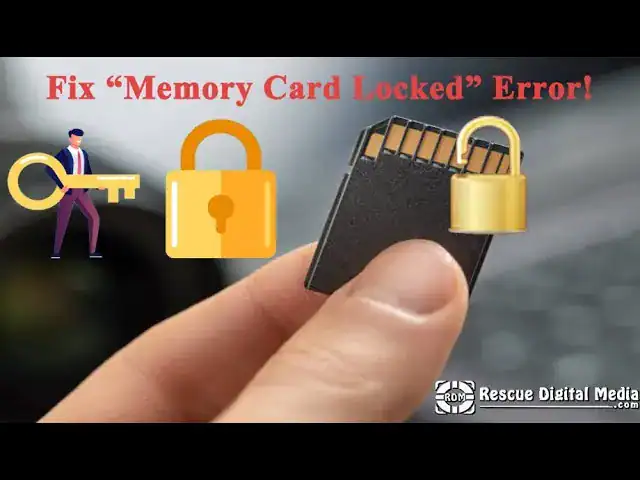
Different cards have varying failure modes and recovery potential. Understanding your card type helps in selecting the right tools for the job.
| Card Type | Typical Failure Point | Recovery Difficulty |
|---|---|---|
| SDHC/SDXC | Controller failure | Moderate |
| MicroSD | Adapter connection | Low |
| CFexpress | High-speed data corruption | High |
| CompactFlash | Bent pins on the interface | Moderate |
Warning: Never force a card into a slot; if you feel resistance, stop immediately to avoid bending the pins inside your camera, which is a much more expensive repair than replacing a memory card.
Frequently Asked Questions
Why does my camera say card error?
A camera displays this error when it can’t communicate with the card’s controller or read the file system partition. This usually happens due to corrupted software, physical debris on the gold contacts, or an incompatible file system format that the camera doesn’t recognize.
Can I fix a corrupted SD card?
Yes, many corruption issues are logical rather than physical. You can often fix these by running diagnostic tools like CHKDSK on a computer or by using specialized data recovery software to extract your files. If the card is physically broken or the controller chip has died, however, the card itself may be beyond repair.
Should I format the card to fix it?
Formatting is an effective way to fix a card, but it should be your last resort. It wipes every file on the storage device. Only format the card if you have successfully recovered your data or if the card contains no photos you wish to keep. Always use the camera’s internal format menu rather than your computer’s operating system.
How do I prevent future errors?
To prevent future errors, always turn your camera off before removing the card. Eject the card properly from your computer instead of pulling it out while files are still transferring. Keep the card in a protective case when not in use, and avoid using the same card across too many different devices, which can cause file system conflicts.
Is it time to buy a new card?
If you have successfully repaired a card but the “Card Error” message returns within a few uses, the flash memory is likely degrading. At this stage, the card is unreliable for professional or important work. Replace it with a new, high-quality card from a reputable manufacturer to ensure the safety of your future photographs and videos.
Conclusion
If you have successfully recovered your data, your next step is to perform a full format of the card within your camera’s settings menu. This reinitializes the file system and ensures the camera can communicate correctly with the storage media. If the camera still displays an error after this process, the hardware is likely failing, and you should retire the card immediately.


1 Comment
Pingback: How to Fix a Camera That Won't Read an SD Card: Easy Steps