A full storage card or a weak network connection is why your security camera isn’t recording in most cases. You can confirm these common issues by checking the device status lights or the mobile application dashboard. When your hardware stops saving footage, it often points to a simple configuration error or a physical limitation rather than a total system failure.
Why your security camera stops recording

| Cause | How common | How to confirm it | Fix it yourself? |
|---|---|---|---|
| Full storage card | Very common | Check app storage status | Yes |
| Network offline | Very common | Try to view live feed | Yes |
| Motion sensitivity low | Common | Check motion event logs | Yes |
| Subscription expired | Common | View account billing page | Yes |
| Power supply issue | Occasional | Check camera status lights | Yes with care |
| Camera firmware error | Rare | Restart the system | Yes |
| Hardware damage | Very rare | Inspect physical casing | No |
Recording failures often stem from simple oversights rather than complex mechanical defects. When a camera stops saving footage, start by checking the power source. A loose cable or a faulty wall adapter can cause intermittent power drops that prevent the device from initiating a recording sequence.
Software conflicts also play a significant role. If your camera is running outdated firmware, it may fail to communicate correctly with your local storage or cloud server. A quick power cycle often forces the system to re-establish these handshake protocols.
Additionally, verify that your recording schedule remains active. Users frequently disable recording modes during maintenance or troubleshooting and forget to toggle them back on afterward. If the camera detects motion but captures nothing, the issue is almost certainly a software setting rather than a hardware failure. Always confirm that your specific account permissions allow for continuous or event-based recording, as cloud-based restrictions can override your local device settings without warning.
Full storage card limitations
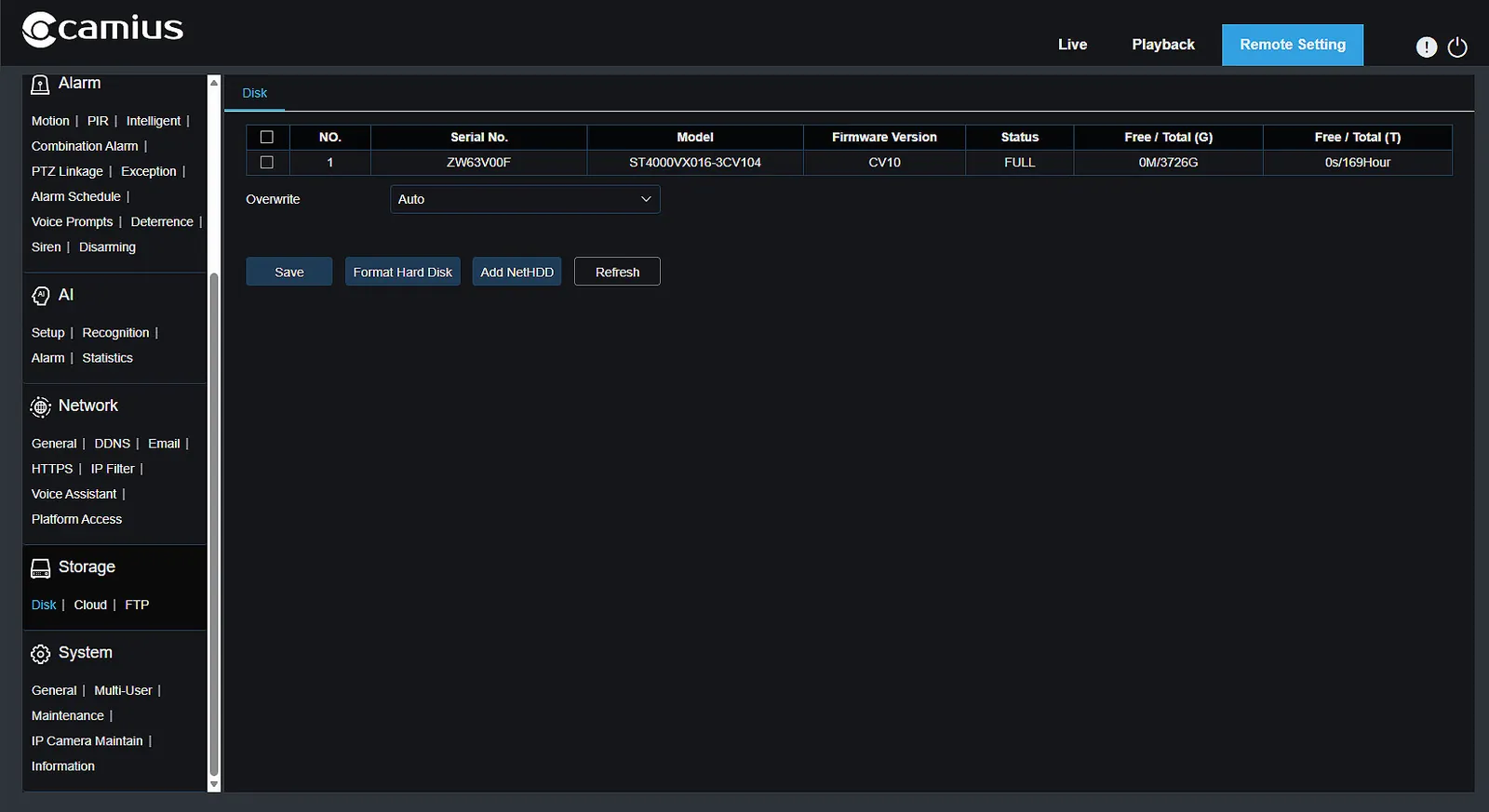
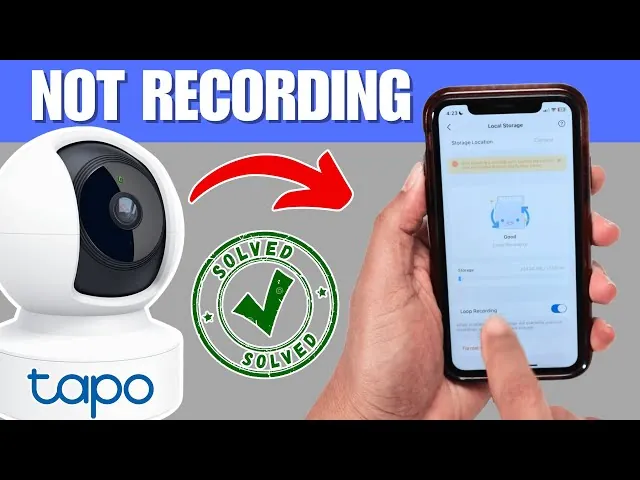
A lack of available space on your microSD card is the most frequent reason for missing footage. Most modern cameras use a loop recording feature, but if the card is corrupted or the file system is incompatible, the camera stops writing new data. You can verify this by opening your camera’s mobile application and looking at the storage health indicator.
If the indicator shows the card is full or unformatted, remove the card and format it using a computer to clear all data. Always ensure you’re using a card with the recommended speed class and capacity for your specific device; the SD Association memory card specifications provide guidance on choosing the right card for high-definition video recording.
If the card still fails to record after formatting, it has likely reached its write-cycle limit and needs a replacement. Replacing a card is a simple process, but it requires buying a new unit that matches the manufacturer’s maximum size limit. If you use a card that exceeds this limit, the camera may fail to recognize the storage entirely.
Network connectivity interruptions
A stable connection is necessary for cloud-based cameras to upload footage. If your Wi-Fi signal is weak or the router has blocked the camera’s MAC address, the device can’t transmit video to the server. You can tell this is the issue if the live view fails to load or shows a constant “reconnecting” message.
To fix this, move your router closer to the camera or install a Wi-Fi range extender to boost the signal strength. Check your router’s administration panel to ensure the camera isn’t on a restricted list or a guest network that prohibits local device communication.
If you have recently changed your Wi-Fi password, you must manually reconnect the camera through its mobile app settings. This process usually takes a few minutes, but it’s necessary to restore communication. If the connection remains unstable despite a strong signal, consider switching to a 2.4GHz band, as it offers better range through walls than 5GHz.
Incorrect motion detection settings
Your camera might be working perfectly but failing to trigger because the motion sensitivity is set too low. If the sensitivity threshold is too high, the camera ignores smaller movements, resulting in no saved clips. You can distinguish this from a network issue because you’ll still be able to view the live video feed without any interruptions.
Adjust the sensitivity slider in your app settings to a higher level to capture more activity. If your camera has “activity zones,” ensure the areas you want to monitor are highlighted or active. Many cameras also have a “schedule” feature that may be set to disable recording during the day or night.
Review your schedule settings to confirm that recording is enabled 24/7 or during the specific hours you require. If the camera still fails to record, try resetting the motion detection zone to the default factory settings to clear any conflicting configurations.
Less likely causes for recording issues
- Outdated firmware: The camera software may contain bugs that prevent recording, which a simple app-driven update can resolve.
- System power failure: An insufficient power adapter may cause the camera to reboot constantly, preventing it from finishing a recording session.
- Physical sensor damage: If the camera lens or motion sensor is obstructed by debris or spiderwebs, it won’t detect the movement needed to start a recording.
- Account permission errors: If you share access with family members, one user may have accidentally disabled recording permissions for your specific account.
If you suspect internal hardware damage or a faulty power board, stop all attempts to fix it yourself to avoid voiding your warranty or causing an electrical hazard. Contact the manufacturer’s support team or a professional installer to diagnose these deeper technical failures.
What a repair usually involves
Fixing a recording issue typically involves software adjustments or replacing inexpensive accessories. If the problem is a full storage card, you’ll need to buy a new microSD card, which is a small cost compared to a new camera. Software updates and network configuration changes cost nothing but your time, usually taking under 20 minutes to complete.
If the power adapter is the culprit, you should purchase a replacement directly from the manufacturer to ensure the voltage matches your specific model. Avoid using generic power supplies, as these can cause long-term damage to the camera’s internal components.
If the issue is a failed internal sensor or a broken motherboard, the cost of professional repair often exceeds the price of a new camera. Always check the official website of your device for a troubleshooting guide or a warranty claim form before spending money on new parts.
Frequently asked questions
How long does a typical microSD card last in a security camera?
A card typically lasts for a variable duration, depending on the quality of the card and how often the camera records.
Is it safe to leave my security camera recording 24/7?
Yes, it’s perfectly safe to record 24/7 as these devices are designed for continuous operation. Ensure your camera is placed in a well-ventilated area so the internal components don’t overheat during long periods of high-resolution video processing.
Why does my camera stop recording at night?
It often stops because the infrared (IR) night vision sensor is failing or the motion sensitivity needs adjustment for low-light conditions. Check your settings to ensure “Night Vision” is set to “Auto” and that the motion detection sensitivity is increased to compensate for the lack of natural light.
How do I know if my cloud subscription has expired?
You’ll receive an alert in your mobile app or an email notification when your billing cycle ends. If you’re unsure, log in to your account profile on the manufacturer’s website to view your current subscription status and payment history.
Does my internet speed affect recording quality?
Yes, your upload speed is the main factor that determines if your camera can successfully save video to the cloud. You need a stable upload speed of at least 2 Mbps per camera to ensure high-definition footage reaches the server without packet loss or gaps.
What happens if I use a card larger than the recommended size?
The camera may fail to format the card or show constant storage errors if you exceed the maximum capacity. Always check your camera’s user manual on the official support page to see the exact storage limit for your specific model.
Conclusion
If you still can’t get your camera running, don’t hesitate to contact the manufacturer’s support team for extra help. Sometimes a quick firmware update or a factory reset is all it takes to get things back on track. You’ll have your peace of mind restored once the system’s working smoothly again.