
A black camera screen is almost always caused by a software glitch, a temporary sensor failure, or an app-level permissions conflict rather than permanent hardware damage. When you open your camera app and find only darkness, it usually means the software can’t successfully handshake with the image sensor to stream a live feed. This issue can affect everything from the latest smartphones to dedicated DSLR cameras, but the solution often involves a systematic process of elimination starting from the simplest software resets before moving toward more invasive hardware inspections.
Key Takeaways
- Perform a forced restart of your device to clear temporary memory cache conflicts.
- Check if third-party apps, such as social media platforms, have exclusive access to your camera sensor.
- Clear the cache and data of the camera application within your system settings menu.
- Inspect the physical lens for obstructions or debris that might be blocking light from reaching the sensor.
- Ensure your operating system is updated to the latest version to patch known driver bugs.
Why Is My Camera Screen Black?
The most common reason for a black screen is a software conflict where the camera application fails to initialize the hardware drivers. In many cases, the camera sensor is perfectly functional, but the operating system has hung during the instruction sequence required to wake the sensor up. This can happen after a system update, when a background process crashes, or when two applications attempt to access the camera hardware simultaneously.
Software vs. Hardware Failures
Distinguishing between a software glitch and a hardware failure is the first step in your troubleshooting journey. If the camera works in one app but not another, the issue is almost certainly software-related. If the screen remains black across all apps, including third-party ones, you should focus on system-wide settings or potential hardware damage.
| Symptom | Likely Cause | Suggested Action |
|---|---|---|
| Black in all apps | System process crash | Perform a hard reboot |
| Black in specific apps | Permission conflict | Reset app permissions |
| Black with error code | Driver malfunction | Check for system updates |
| Black after dropping | Physical sensor damage | Contact professional repair |
Testing Your Camera Permissions
Modern mobile operating systems prioritize privacy, which means apps must request permission to access your hardware. Sometimes, these permissions become corrupted or are inadvertently revoked during an update. If your camera app lacks the necessary authorization, the system will prevent the sensor from activating, resulting in a black display.
Navigate to your privacy or application settings to ensure your camera app has “Always Allow” or “Allow while using” status. If the settings appear correct, try toggling them off and then back on again. This “refresh” can force the operating system to re-establish the connection between the software interface and the hardware sensor.
Clearing The App Cache
Every application stores temporary files to help it load faster, but these files can become corrupted over time. When a camera app tries to load a corrupted cache file, it may fail to launch correctly, leaving you staring at a black screen. Clearing the cache is a safe operation that won’t delete your photos or videos.
Pro Tip: Look for the “Clear Cache” button specifically, rather than “Clear Data,” if you want to avoid resetting your custom camera settings like timer preferences or resolution modes.
Steps to Reset App Data
- Open the Settings menu on your device.
- Select the “Apps” or “Application Manager” section.
- Find your native camera application in the list.
- Tap “Storage” and select “Clear Cache.”
- Restart your device to finalize the changes.
Checking For Sensor Obstructions
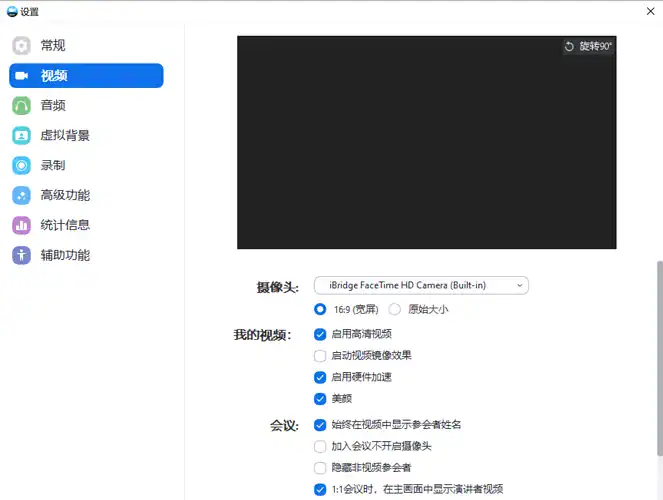
While it sounds obvious, ensure your camera lens isn’t physically covered. Some protective cases have sliding covers that can accidentally drift over the lens, or a smudge might be so thick that it prevents the light sensor from detecting any image information. Use a clean, lint-free microfiber cloth to gently wipe the lens surface before assuming the issue is digital.
Updating Your Operating System
Manufacturers frequently release patches for known bugs that affect hardware components. If a widespread issue exists with your specific device model, the official manufacturer support documentation will often list it as a known problem resolved in the latest firmware update. Keeping your device current ensures that the drivers controlling your camera hardware are compatible with the latest security protocols and software libraries.
Managing Third-Party App Conflicts
If you have recently installed a new app that uses the camera, such as a video conferencing tool or a social media filter, it might be hogging the camera hardware. If that app is running in the background, it might prevent the default camera app from gaining access. Close all background applications completely to ensure the camera hardware is released from any competing processes.
Identifying Physical Hardware Damage
If you have tried all the software steps above and the screen remains black, you may be dealing with a hardware failure. This is common if the device has suffered a recent impact, exposure to water, or extreme temperature fluctuations. A damaged ribbon cable or a disconnected sensor will prevent the signal from reaching your processor, resulting in a permanent black feed.
| Inspection Point | What to Look For | Result of Failure |
|---|---|---|
| Lens Glass | Cracks or deep scratches | Distorted or dark image |
| Ribbon Cable | Loose connection internally | Total signal loss |
| Sensor Module | Burn-in or physical trauma | Black screen or static |
| Power Supply | Battery voltage drops | Camera crashes on launch |
When To Contact A Professional
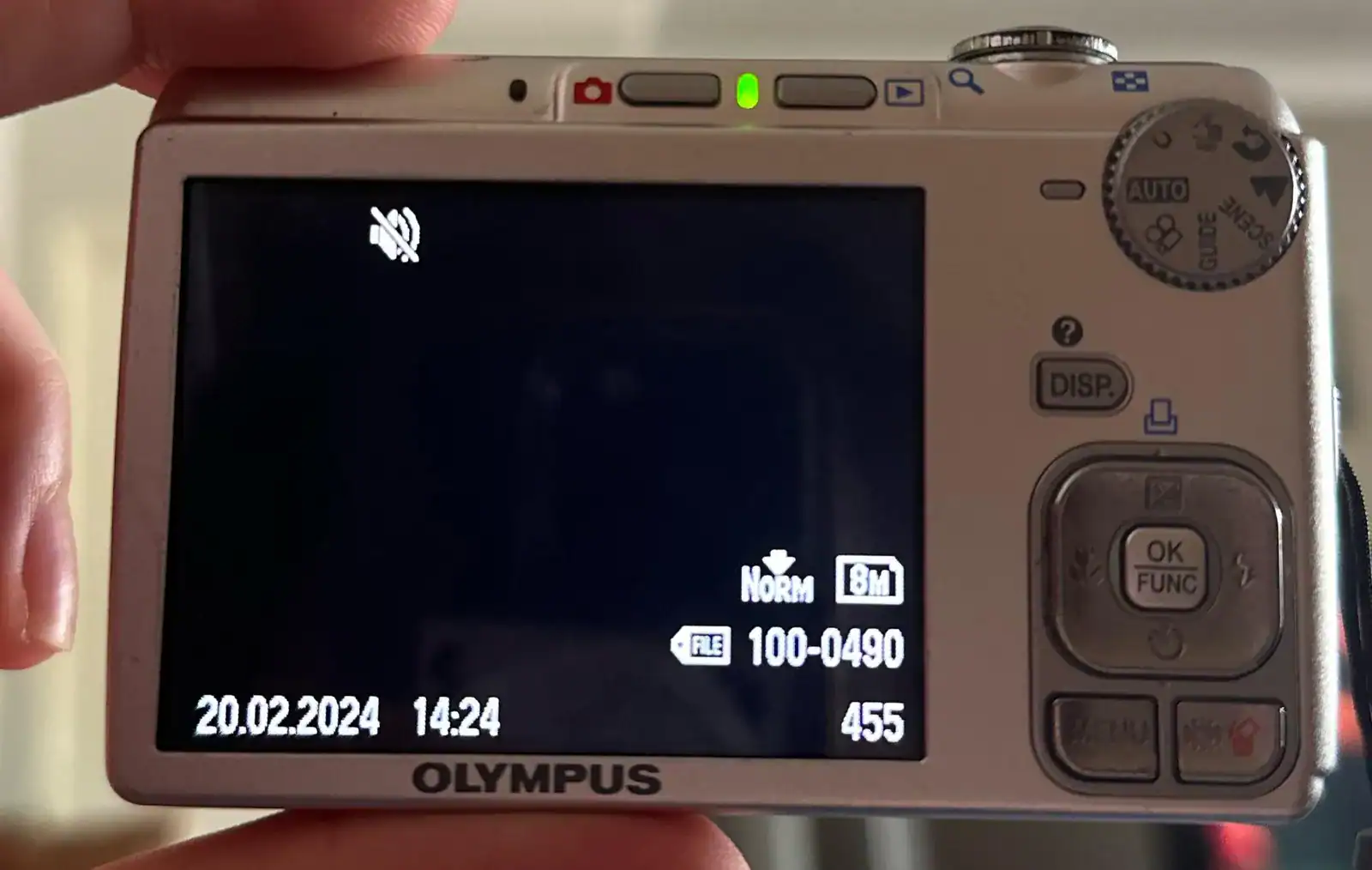
Warning: Don’t attempt to open your smartphone or camera body unless you have specific training and the proper tools. Opening a modern device can void your warranty, damage the water-resistant seals, or cause a short circuit in the battery module.
If your device is still under warranty, contact the manufacturer to arrange a repair or replacement. Attempting to force a fix on a hardware-level problem often leads to further damage that’s more expensive to repair than the original issue. A professional technician can use diagnostic software to confirm if the sensor itself has failed.
Frequently Asked Questions
Will a factory reset fix my camera?
A factory reset often resolves persistent black screen issues caused by deep-seated software corruption. However, it’s a last resort because it erases your data. Only perform a factory reset after backing up your photos, contacts, and documents to a cloud service or an external drive. If the camera remains black after a full reset, the problem is confirmed to be hardware-based.
Can a dying battery cause this?
Yes, a failing battery may not provide the consistent voltage required to power the camera sensor and the processing unit simultaneously. When the camera attempts to draw high current, the system may shut down the sensor to preserve power or prevent a crash. If your device also turns off unexpectedly during high-intensity tasks, consider replacing the battery.
Does heat affect the camera feed?
Excessive heat can trigger a thermal protection mode in many devices. If your phone or camera is extremely hot to the touch, the system may disable the camera to prevent further heat buildup and potential component damage. Allow the device to cool down in a shaded area for at least fifteen minutes before attempting to use the camera again.
Why is the screen black in low light?
If your camera screen is black only in dark environments, it might be failing to switch into “Night Mode” or increasing the ISO sensitivity correctly. Check if your camera software has a manual exposure setting. If the screen is black even in bright rooms, however, this isn’t a lighting issue but a failure of the sensor to capture any incoming light.
Are there diagnostic apps for cameras?
There are several diagnostic tools available in app stores that can test your hardware components, including the camera sensor. These apps send a signal to the hardware and listen for a response. If the diagnostic app also returns a black screen or an “Access Denied” error, you can be confident that the issue isn’t just a glitch in your default camera app.
Conclusion
Troubleshooting a camera that displays only darkness requires patience and a methodical approach. Start by closing all background applications and performing a standard restart, as these simple steps resolve the vast majority of software-related conflicts.
If the problem persists, ensure your device is running the latest software, clear the system cache, and check for any physical obstructions blocking the lens. Should these measures fail to restore your camera functionality, consult with an authorized service provider to diagnose potential internal hardware damage.


1 Comment
Pingback: Why Is My Webcam Showing a Black Screen? 6 Easy Fixes