
Connecting a borescope to a smartphone might sound technical, but it’s much simpler than most people expect. With the growing use of portable inspection cameras in fields like automotive repair, plumbing, and home maintenance, knowing how to link a borescope to your mobile device is a practical skill. This guide will walk you through every detail, from the basic requirements to troubleshooting tips, so you can confidently use your borescope for close-up inspections—whether you’re checking engine cylinders or looking for lost items behind the couch.
What Is A Borescope?
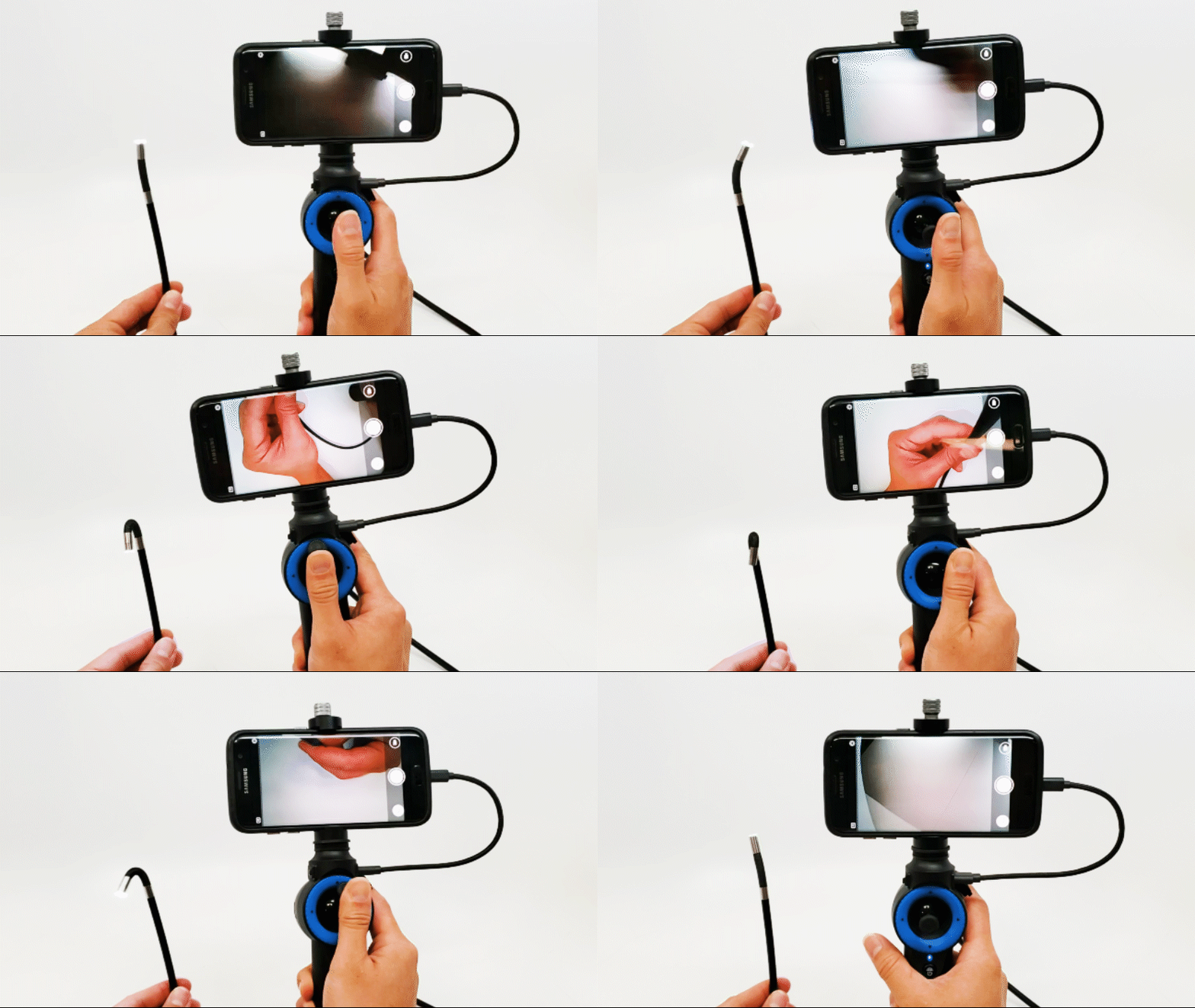
A borescope is a thin, flexible camera tool that lets you see into tight or hidden spaces. It usually consists of a long cable with a small camera and LED lights at the end. The camera sends real-time video and images to a screen—nowadays, most often to a smartphone or tablet. This makes borescopes popular among mechanics, electricians, plumbers, and even curious homeowners.
Modern borescopes can connect directly to smartphones, which serve as both a display and a way to record images and videos. Some models are waterproof, support high-definition video, and have adjustable lighting. Choosing the right connection method is key for smooth operation.
Types Of Borescopes For Smartphones
Not all borescopes work the same way with phones. Here are the three main types you’ll encounter:
| Borescope Type | Connection Method | Common Devices Supported |
|---|---|---|
| USB Borescope | Wired (USB/USB-C/Lightning) | Android, Some iOS |
| Wi-Fi Borescope | Wireless (Wi-Fi hotspot) | Android, iOS |
| Bluetooth Borescope | Wireless (Bluetooth) | Mainly Android |
Each type has its pros and cons, which we’ll cover shortly.
What You Need Before Connecting
Before you connect your borescope, make sure you have:
- Compatible smartphone: Most borescopes support Android devices. Some support iPhones, but compatibility can be tricky.
- Correct borescope type: Check if your phone has USB-C, micro-USB, or Lightning ports. For wireless types, make sure your phone supports Wi-Fi or Bluetooth connections.
- Borescope app: Download the recommended app for your borescope. Many brands have their own apps (e.g., “HD SEE,” “Inskam”), or you might use a generic camera app.
- Power supply: Wired borescopes often draw power from the phone; wireless borescopes have built-in batteries that need charging.
- Cleaning supplies: Keep the camera lens clean for the best picture.
Many first-timers forget to check app compatibility, which is a common reason why connections fail.
Connecting A Usb Borescope To Your Smartphone
USB borescopes are the most common and affordable. They usually connect directly to your phone’s charging port.
Steps For Android Phones
- Check OTG Support: Your phone must support USB On-The-Go (OTG). This allows external devices, like a borescope, to talk to your phone. Most recent Android models support OTG.
- Connect the Borescope: Plug the borescope into your phone’s USB, USB-C, or micro-USB port. Some borescopes come with adapters for different connectors.
- Install the App: Open the recommended app. It may prompt you for permission to use the USB device.
- Start Inspecting: The live camera feed should appear. Use the app to adjust lighting or take snapshots.
Example:
If you have a Samsung Galaxy S21, you’ll need a USB-C borescope or a micro-USB borescope with a USB-C adapter.
Steps For Iphones
IPhones are less flexible with USB devices. Most do not support standard USB borescopes unless certified as “Made for iPhone. ”
- Lightning borescopes: Some borescopes are designed specifically for iPhone’s Lightning port.
- Check compatibility: Read the product listing carefully. Many USB borescopes won’t work with iOS.
- Install the App: Download the required app from the App Store.
Non-obvious Tip:
Many iPhone users buy a Wi-Fi borescope instead, as it avoids compatibility issues.
Connecting A Wi-fi Borescope
Wi-Fi borescopes are popular because they work with almost any smartphone. These devices create their own Wi-Fi hotspot.
How To Connect
- Charge the borescope: Make sure the built-in battery is full.
- Turn on the borescope: Press the power button; the Wi-Fi signal should start broadcasting.
- Connect your phone to the borescope’s Wi-Fi: Go to your phone’s Wi-Fi settings. Look for a network name that matches your borescope model (for example, “Inskam_XXXX”).
- Open the borescope app: The live video feed should appear.
This method works for both Android and iOS. The main downside is that you lose access to your regular Wi-Fi while connected to the borescope.
Practical Insight:
Wi-Fi borescopes can sometimes lag if the signal is weak. Keep your phone close to the device.
Connecting A Bluetooth Borescope
Bluetooth borescopes are less common. They pair with your phone like a Bluetooth headset.
- Turn on the borescope.
- Enable Bluetooth on your phone.
- Pair the devices: Select the borescope from the list of Bluetooth devices.
- Open the app.
Bluetooth is usually slower than Wi-Fi, and video quality may suffer. Most professionals prefer Wi-Fi or USB connections.

Choosing The Right App
Not all borescope apps are equal. Some allow image capture, video recording, zoom, and brightness adjustment. Others are limited to a basic video feed.
Popular options include:
- HD SEE
- Inskam
- OTG View
- Mo-View
Always download from trusted sources like Google Play or the App Store. Some borescopes will not work without their specific app.
Troubleshooting Connection Problems
Connecting your borescope doesn’t always work perfectly the first time. Here’s what to check if you have issues:
| Problem | Possible Cause | Solution |
|---|---|---|
| No image on screen | OTG not enabled, wrong app, or faulty cable | Check OTG, try another app, inspect cables |
| Borescope not recognized | Compatibility issue or insufficient power | Try another device, charge the borescope |
| App crashes | Outdated app or OS, insufficient permissions | Update app/OS, allow permissions |
| Laggy video | Weak Wi-Fi/Bluetooth, interference | Move closer, reduce other signals |
Insider Tip:
If your phone doesn’t support OTG, a USB borescope won’t work—no matter which app you use.
Comparing Connection Methods
Here’s a quick look at the strengths and weaknesses of each connection style.
| Connection Method | Pros | Cons |
|---|---|---|
| USB/Lightning | Stable connection, no battery | Limited device support, cable required |
| Wi-Fi | Works with most phones, no wires | Uses battery, possible signal lag |
| Bluetooth | Wireless, easy pairing | Lower video quality, rare option |
Key Things To Remember
- Always check compatibility before buying a borescope. Not all devices support all connection types.
- Use the right app: Some borescopes only work with their own app.
- Handle the cable carefully: Borescopes are delicate. Avoid bending or twisting the camera cable too much.
- Clean the lens before each use for a clear image.
- Read the manual: Even experienced users miss special features or requirements hidden in the manual.
Common Mistakes To Avoid
- Ignoring OTG support: Many people think any USB borescope works with any phone. Without OTG support, connection is impossible.
- Skipping the app installation: The default camera app usually won’t recognize the borescope.
- Forgetting to charge: Wireless borescopes need to be charged before use.
- Not updating the app: Outdated apps can cause crashes or poor performance.
Advanced Tips For Better Inspections
- Adjust the lighting: Most borescopes have brightness controls on the cable or app. Too much light can cause glare, too little makes details hard to see.
- Record your findings: Use the app to capture images or videos. This helps when sharing results with others or keeping records.
- Use accessories: Some borescopes come with hooks or magnets to retrieve small objects. Attach these carefully to avoid damaging the camera.
- Work slowly: Move the camera slowly for a smooth video feed. Fast movements can blur the image or lose focus.
- Check for firmware updates: Some high-end borescopes allow firmware updates, which can improve performance or add features.
Safety And Care
A borescope is a sensitive tool. Never force the cable into tight spaces, as it may break the camera or cable. After use, wipe the camera with a soft, dry cloth. For waterproof models, rinse with clean water and dry completely before storing.
Store your borescope in its case to prevent tangling and damage.
Where To Learn More
If you want to dive deeper into the technical side of borescopes or learn about specific models and their compatibility, you can check the detailed guide on Wikipedia.

Frequently Asked Questions
Can I Use Any Borescope With My Smartphone?
No, you cannot use any borescope with every smartphone. Check for compatibility with your phone’s operating system and connection port. Some borescopes only work with Android, while others are designed for iOS.
Why Doesn’t My Borescope Show An Image On My Phone?
Common reasons include missing OTG support, using the wrong app, or a faulty cable. Make sure your phone supports OTG (for USB models), and always use the recommended app.
Is A Wi-fi Borescope Better Than A Usb Borescope?
Both have advantages. Wi-Fi borescopes work with more devices and provide wireless freedom, but they can have signal lag. USB borescopes offer a stable, wired connection but are limited by port compatibility.
How Do I Clean The Borescope Camera?
Use a soft, dry cloth to gently wipe the camera lens. For waterproof borescopes, you can rinse the camera end with water. Make sure the device is turned off before cleaning.
Can I Use My Borescope Underwater?
Many borescopes are waterproof, but not all. Check the specifications for an IP67 or higher rating before using in wet environments. Always dry the camera completely after use.
Connecting a borescope to your smartphone unlocks a world of inspection possibilities, from home repairs to industrial checks. With the right tools, careful setup, and a bit of patience, you’ll capture clear visuals from places you never thought possible.

