
Can You Livestream Using A Camcorder?
Today, livestreaming is everywhere—on social media, in business meetings, during events, and even classrooms. Many people use smartphones or webcams to go live. But what if you want better video quality or more control over your image? That’s where the question comes in: Can you livestream using a camcorder? The short answer is yes, but the process is not as simple as plugging in your phone. This article will guide you through what you need, how it works, and why a camcorder might be your next best tool for livestreaming.
Why Consider A Camcorder For Livestreaming?
Most people start livestreaming with basic tools—usually a smartphone or a built-in laptop webcam. These are quick and easy, but they have big limits. Here’s why many streamers switch to a camcorder:
- Better video quality: Camcorders have larger sensors and better lenses than most webcams and phones.
- Zoom and focus control: You can zoom in on subjects or keep focus on moving objects.
- Longer recording times: Camcorders are designed for long events, not just short clips.
- Professional look: You get sharper images, more natural colors, and better low-light performance.
For example, if you are livestreaming a wedding, concert, or sports match, a camcorder can make your stream look much more professional.
What Do You Need To Livestream With A Camcorder?
Livestreaming with a camcorder is possible, but it requires a few extra pieces of equipment. Here’s a quick overview:
- Camcorder with clean HDMI output: Not all camcorders work for livestreaming. You need a camcorder that can send a clean video signal (no icons or overlays).
- Capture card or device: This device converts the camcorder’s video signal so your computer can use it.
- Computer or encoder: You need a computer or hardware encoder to process the video and send it online.
- Streaming software: Programs like OBS Studio or vMix let you control your livestream.
- Fast internet connection: Livestreaming uses a lot of data. You need a stable and fast upload speed.
- Audio setup (optional): External microphones or audio mixers can improve your stream’s sound.
Let’s break down how each part works and what to look for.
Choosing The Right Camcorder For Livestreaming
Not every camcorder will work. Here are the key things to check:
- Clean HDMI Output: This means the camcorder can send video to another device without on-screen icons (like battery level or recording time). Check the camera’s specs or manual for this feature.
- Continuous Power: Look for camcorders that can use AC power or a dummy battery. Streaming drains batteries fast.
- Autofocus and Image Stabilization: Good autofocus keeps the image sharp. Stabilization helps if you’re moving the camera.
- Low-Light Performance: If you stream indoors or at night, a camcorder with a larger sensor or good low-light performance is best.
Some popular models for livestreaming include the Canon Vixia series, Sony Handycam models, and Panasonic HC-VX981K. Prices range from $200 to $1,000+ depending on features.
What Is A Video Capture Card And Why Do You Need One?
A capture card is a small device that connects your camcorder to your computer. It takes the HDMI signal from the camcorder and converts it to a format your computer can use—usually via USB.
Most computers and laptops don’t have built-in HDMI video inputs. That’s why the capture card is essential for livestreaming with a camcorder.
There are two main types:
- External capture cards: These connect to your computer through USB. Popular brands include Elgato Cam Link, AverMedia, and Razer Ripsaw.
- Internal capture cards: These install inside a desktop PC. They are more powerful but harder to set up.
Here’s a quick comparison of common capture card options:
| Model | Type | Max Resolution | Price Range | Ease of Use |
|---|---|---|---|---|
| Elgato Cam Link 4K | External (USB) | 4K/30fps | $100-$130 | Plug & Play |
| AverMedia Live Gamer Mini | External (USB) | 1080p/60fps | $80-$100 | Plug & Play |
| Blackmagic DeckLink Mini Recorder | Internal (PCIe) | 1080p/60fps | $150-$200 | Advanced Setup |
Pro tip: When choosing a capture card, always check if it supports your camcorder’s output resolution and frame rate.
Setting Up Your Camcorder For Livestreaming
Once you have your camcorder and capture card, here’s how to set up everything:
- Connect the camcorder to power: Use an AC adapter or dummy battery for long streams.
- Plug HDMI cable into the camcorder’s output port.
- Connect the other end of the HDMI cable to the capture card.
- Plug the capture card into your computer’s USB or PCIe slot.
- Turn on the camcorder and set it to video mode (not playback).
- Open your streaming software (like OBS Studio). Add a new video source and select the capture card.
- Check the video feed: Make sure you see a clean image with no overlays.
- Set up your audio: You can use the camcorder’s mic, but for better sound, use an external microphone or audio mixer.
If the image is not showing, double-check the camcorder’s settings. Some cameras require you to turn off certain display options for a clean HDMI signal.
Using Streaming Software
Streaming software lets you control what your viewers see, add overlays, and choose where to send your video (YouTube, Facebook, Twitch, etc.). The most popular options are:
- OBS Studio (Open Broadcaster Software): Free and open-source. Good for beginners and advanced users.
- Streamlabs OBS: Built on OBS, but with extra features for streamers.
- VMix: Paid software with advanced features for professional productions.
- XSplit Broadcaster: Another paid option, easy to use.
With these programs, you can add multiple video sources, show your desktop, add graphics, or switch between cameras.
Here’s a basic workflow:
- Add your camcorder as a video source.
- Add audio sources (microphone, music, etc. ).
- Set up your streaming destination (YouTube, Facebook, etc. ).
- Check your stream preview.
- Go live!
Most software also lets you record your stream, so you have a backup copy.
Comparing Camcorders To Other Livestreaming Cameras
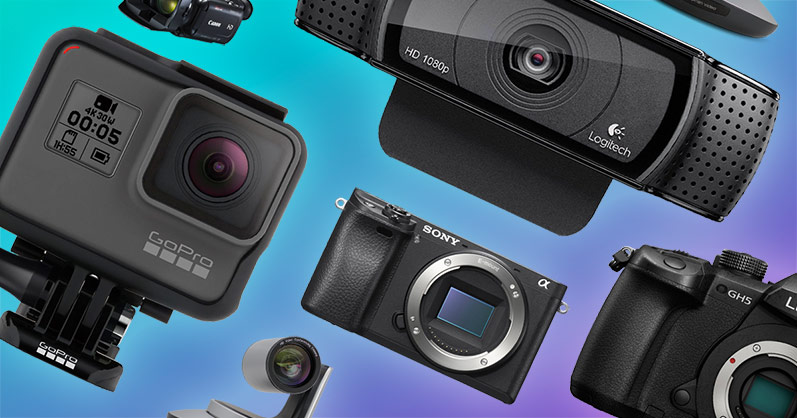
Is a camcorder really better than other options? Here’s a quick comparison between camcorders, webcams, and DSLRs/mirrorless cameras:
| Feature | Camcorder | Webcam | DSLR/Mirrorless |
|---|---|---|---|
| Video Quality | High (good for motion) | Medium | Very High |
| Ease of Use | Medium | Easy | Medium/Complex |
| Recording Time | Unlimited (with power) | Unlimited | Often limited (30 min) |
| Autofocus | Good for video | Basic | Sometimes slow |
| Price | $200-$1,000+ | $30-$150 | $500-$2,000+ |
Insight: Many beginners think DSLRs are always better, but camcorders often outperform them for long video shoots and events because they don’t overheat or shut off after 30 minutes.
Pros And Cons Of Using A Camcorder For Livestreaming
Let’s look at the main advantages and drawbacks:
Pros:
- Long, reliable streaming: Camcorders are built for hours-long use.
- Good autofocus and zoom: Great for events, sports, and moving subjects.
- No overheating: Unlike many DSLRs, camcorders don’t get too hot.
Cons:
- Setup is more complex: You need a capture card and streaming software.
- Not all models have clean HDMI: Double-check before buying.
- Some can be bulky: Not as portable as a webcam.
Common Mistakes To Avoid
Many first-time streamers run into the same problems. Here’s what to watch out for:
- Using a camcorder without clean HDMI: You’ll end up streaming the camera’s menu and icons.
- Relying on battery power: Batteries die fast. Always use AC power for long streams.
- Choosing the wrong capture card: Not every capture device supports every camera or resolution.
- Ignoring audio quality: Viewers will leave if your sound is bad, even if your video looks great.
- Overlooking internet speed: A slow upload speed causes buffering and poor video quality.
Non-obvious tip: Some camcorders automatically turn off after a set time to save battery. Check your settings and use AC power to prevent this.
Real-world Examples
Many successful livestreamers use camcorders for their work:
- Church services: Camcorders are popular for streaming religious events because they run for hours and zoom in on speakers.
- Sports events: Fast autofocus and smooth zoom make camcorders ideal for capturing action.
- Education and webinars: Teachers use camcorders to show experiments or classroom activities with clear, stable video.
- Concerts and performances: The ability to film in low light and record for hours is a big plus.
For instance, during the 2020 pandemic, many schools upgraded from webcams to camcorders for virtual classes, leading to clearer video and fewer technical issues.

Cost Breakdown: What To Budget For
Livestreaming with a camcorder can be more expensive than using a webcam, but it often pays off in quality. Here’s a sample budget for a basic setup:
| Item | Low-End Price | High-End Price |
|---|---|---|
| Camcorder | $200 | $1,000+ |
| Capture Card | $80 | $200 |
| Tripod | $20 | $100 |
| External Microphone | $30 | $200 |
| HDMI Cable | $10 | $30 |
Total estimated cost: $340 to $1,530+
Advanced Tips For Better Livestreams
If you want to take your livestream to the next level, consider these tips:
- Use manual focus for static shots: This avoids focus “hunting” where the camera goes blurry.
- Set exposure manually: Automatic settings can make your video too bright or too dark if the scene changes.
- Invest in lighting: Even a basic ring light can make your stream look more professional.
- Monitor your stream on a second device: This helps you see what viewers see and catch issues early.
- Record locally: Always record a backup in case the stream has problems.
Pro insight: Many beginners forget about audio. A cheap external microphone often improves sound more than an expensive camera upgrade.
Frequently Asked Questions
Can I Use Any Camcorder For Livestreaming?
No, not every camcorder works well for livestreaming. You need one with clean HDMI output and the ability to run on continuous power. Always check the camera’s manual or ask the manufacturer before buying.
Do I Need An Expensive Camcorder For Good Livestream Quality?
Not always. Many mid-range camcorders ($300–$600) offer excellent video quality for livestreaming. What matters more is clean HDMI, good autofocus, and reliable power—not just price.
How Fast Should My Internet Be For Livestreaming?
For a 1080p stream, you should have at least 5 Mbps upload speed. Faster is better, especially for higher resolutions or multiple cameras. You can test your speed using online tools or through your internet provider.
Can I Livestream Directly From A Camcorder Without A Computer?
Some newer camcorders offer built-in livestreaming features using Wi-Fi or Ethernet. However, most require a computer or dedicated encoder with a capture card. Check your camera’s features to see if this is possible.
What Streaming Platform Works Best With Camcorders?
Most camcorders work with any major platform (YouTube, Facebook Live, Twitch) as long as you use the right capture card and software. OBS Studio is a popular choice because it’s free and supports many devices. For more details, you can visit the OBS Studio website.
Livestreaming with a camcorder is a smart move if you want better video, more control, and a professional look. With the right setup and a bit of practice, your streams will stand out from the crowd. Whether you’re sharing events, teaching, or building your online brand, a camcorder can be your best livestreaming partner.

