Connecting your camcorder to a TV or computer opens up many possibilities. You can view home videos on a big screen, transfer old footage to your laptop, or even use your camcorder as a webcam for meetings. But with so many cable types and device options, it’s easy to feel lost.
This guide will help you understand every step, from picking the right cable to troubleshooting common problems.
Understanding Camcorder Outputs And Inputs
Before you connect anything, you should know what types of ports your camcorder offers and what your TV or computer accepts. Most camcorders have one or more of these outputs:
- HDMI: Modern camcorders often have a mini or micro HDMI port.
- USB: Used mainly for data transfer, but sometimes for live video streaming.
- AV (RCA): Older camcorders may have a yellow (video) and red/white (audio) output.
- FireWire (IEEE 1394): Found on some older DV and HDV camcorders.
On the other side, your TV or computer will have different inputs, such as HDMI, USB, RCA (Composite), or even SD card slots. Always check both devices to avoid buying the wrong cable.
How To Connect A Camcorder To A Tv
Watching your footage on a big screen is satisfying. The exact steps depend on your camcorder’s age and the TV’s available ports.
Using Hdmi
HDMI gives the best quality and is very simple.
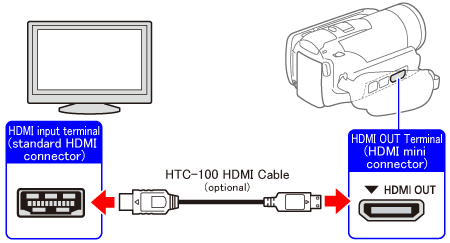
- Check the ports: Camcorders usually have Mini or Micro HDMI; TVs have standard HDMI.
- Get the right cable: For example, a Mini HDMI to HDMI cable.
- Connect both devices: Turn off the TV and camcorder first. Plug the cable into the camcorder and TV.
- Power on and select source: Turn on the camcorder (usually in playback mode), then power on the TV. Use your TV remote to select the right HDMI input.
- Watch your video: Control playback from your camcorder.
Practical tip: Some TVs auto-switch to the right input, but if nothing appears, double-check the cable is firmly connected.
Using Av (rca) Cables
RCA is common on older camcorders.
- Identify the AV cable: Usually one end has a 3.5mm plug (camcorder side), and the other end has red, white, and yellow RCA plugs.
- Connect to TV: Match the colors to the TV’s AV inputs.
- Switch TV input: Select AV or Composite as the source.
- Play video: Use your camcorder’s controls.
Non-obvious insight: Some TVs combine the yellow video and green component port. Check your TV’s manual if your image is black and white.
Using S-video
Rare, but some higher-end older camcorders use S-Video for better video quality.
- Plug the S-Video cable into both camcorder and TV.
- Use separate RCA cables for audio (red and white).
- Select S-Video input on your TV.
Wireless Options
A few modern camcorders support Wi-Fi connections. You may stream directly to smart TVs or cast using DLNA. However, this often has more lag and lower quality.
Troubleshooting Tv Connections
If you see no video:
- Check all cable connections.
- Make sure the TV source matches the input.
- Try another HDMI or AV port.
- Test with a different cable.
- On some camcorders, you must set playback mode for video output to work.
How To Connect A Camcorder To A Computer
Transferring footage or using your camcorder as a webcam is useful for editing, sharing, or live streaming.
Direct Usb Connection
Most new camcorders support USB connection.
- Plug in the USB cable (often USB-A to USB Mini or Micro).
- Power on the camcorder in playback or “PC connect” mode.
- The computer should recognize the camcorder as a storage device.
- Open your file manager (e.g., Windows Explorer), then copy video files.
Non-obvious insight: Sometimes, you need to install drivers from the camcorder’s manufacturer, especially for older models.
Hdmi Capture Card (for Live Video Or Webcam Use)
If you want to use your camcorder for live streaming or video calls, you need a capture card.
- Plug your camcorder’s HDMI out to the HDMI in of the capture card.
- Plug the capture card into your computer’s USB port.
- Set your camcorder to video mode (some have a “clean HDMI” feature to remove on-screen info).
- Open your video conferencing or streaming app and select the capture card as the camera.
Example: Many YouTubers use this setup with Elgato or AVerMedia capture cards.
Using Firewire (dv/hdv Camcorders)
Older camcorders (especially those recording to tape) often use FireWire.
- Plug a FireWire cable from the camcorder to your computer.
- Turn on the camcorder in playback mode.
- Use video capture software (like Windows Movie Maker, iMovie, or Adobe Premiere) to import footage.
Important: Many new computers lack FireWire ports. You may need a FireWire-to-USB-C adapter, but not all adapters work perfectly with video.
Sd Card Transfer
If your camcorder records to an SD card, remove the card and use a card reader.
- Insert the SD card into your computer’s card slot or a USB card reader.
- Open the video folder and copy files as you would with a flash drive.
Wireless Transfer
Some camcorders let you transfer videos over Wi-Fi or Bluetooth. This is usually slower and may compress video, but it’s handy for quick sharing.
Common Problems And Solutions
Even with the right cable, you might face issues. Here are some solutions:
- No signal on TV: Check both input settings and cable types. Try another port or cable.
- Computer doesn’t recognize camcorder: Change USB ports, restart both devices, or try another cable. Check for required drivers.
- No audio: Make sure both audio cables are connected (red and white RCA), or set HDMI audio output properly in your TV or PC settings.
- Poor video quality: Use HDMI instead of AV or S-Video if possible. If using wireless, expect lower quality.
- Camcorder not working as webcam: Not all camcorders support “clean HDMI” out. Research your model or try using “PC camera” mode if available.

Comparing Connection Methods
It helps to see the main differences at a glance:
| Method | Video Quality | Ease of Use | Best For |
|---|---|---|---|
| HDMI | High | Easy | Modern TVs & Computers (via capture card) |
| AV (RCA) | Medium/Low | Easy | Older TVs |
| USB | High (File Transfer) | Very Easy | Computers |
| FireWire | High | Medium | Older DV/HDV Camcorders |
| SD Card | High | Very Easy | Modern Camcorders |
| Wi-Fi | Medium | Medium | Quick Sharing |
What You Need For Each Setup
If you’re unsure what to buy, here’s a quick checklist:
| Camcorder Output | TV/Computer Input | Needed Cable/Device |
|---|---|---|
| HDMI Mini/Micro | HDMI | Mini/Micro HDMI to HDMI Cable |
| AV (3.5mm/Composite) | RCA | 3.5mm to 3 RCA Cable |
| FireWire | FireWire/USB-C | FireWire Cable + Adapter |
| SD Card | SD Card Slot/Reader | SD Card Reader (if needed) |
| HDMI | USB (Computer) | HDMI Capture Card |
Extra Tips For Success
- Keep cables short for best signal quality; long cables can cause video or audio problems.
- Power the camcorder with AC (not battery) for long sessions, especially when using as a webcam.
- Label your cables if you have many devices—it avoids mistakes.
- Some TVs and computers won’t auto-detect the camcorder. Always check the input source settings.
- If your camcorder supports clean HDMI, enable it so no icons or battery markers appear on the video.
When To Buy An Adapter Or Converter
Sometimes your devices just don’t match. For example, you want to connect an old camcorder with AV out to a new TV with only HDMI ports. In this case, you’ll need an AV-to-HDMI converter. It’s a small box that changes the signal, but always check reviews for compatibility before buying.
Example: If your camcorder has S-Video out and your TV has only HDMI, you’ll need an S-Video to HDMI converter.
:max_bytes(150000):strip_icc()/connectcamtv2-56a994ed5f9b58b7d0fcf6e5.jpg)
Digital Vs. Analog Camcorders
Digital camcorders (recording to SD, hard drive, or DVD) transfer video easily. Analog camcorders (like Hi8, VHS-C) often require extra steps or converters to digitize video for computers.
Non-obvious insight: Analog video can be lost forever if not digitized soon. Tapes degrade over time, so consider transferring old footage now.
Using A Camcorder As A Webcam
Many people use camcorders as webcams for higher-quality video in Zoom or YouTube live streams. You will need:
- Camcorder with clean HDMI: Otherwise, you’ll see all the on-screen icons.
- HDMI capture card: Converts the HDMI signal to USB for your computer.
- Streaming software: Like OBS Studio, to select the camera input.
Extra tip: Not all camcorders allow unlimited video out. Some will shut off after 30 minutes due to overheating or power-saving features. Check your model’s manual.
Safety And Maintenance
- Always power off devices before connecting or disconnecting cables to prevent short circuits.
- Avoid forcing cables into ports; align them gently.
- Store cables neatly to avoid damage.
When To Seek Help
If your connection still doesn’t work, consult the camcorder or TV manual. Sometimes, firmware updates or settings changes are needed. You can also ask for advice in online forums or from electronics stores.
For more technical details, the official Wikipedia Camcorder page explains camcorder history and standards.
Frequently Asked Questions
How Do I Know What Cable My Camcorder Needs?
Check the ports on your camcorder. Look for labels like HDMI, AV, or USB. The manual or a quick web search for your model can help identify the correct cable.
Why Does My Tv Show “no Signal” When I Connect The Camcorder?
This usually means the TV input is wrong, the camcorder isn’t in playback mode, or the cable isn’t fully connected. Try changing the TV input source and double-checking the cable connections.
Can I Use My Camcorder As A Webcam For Zoom Calls?
Yes, if your camcorder has clean HDMI output and you use a capture card. Some newer camcorders also have a “webcam” or “PC camera” mode using USB.
My Computer Doesn’t Recognize My Camcorder. What Should I Do?
Try another USB port or cable. Check if you need special drivers from the camcorder’s website. For FireWire camcorders, make sure your computer supports FireWire.
Is It Possible To Connect An Old Analog Camcorder To A New Tv Or Computer?
Yes, but you’ll likely need an analog-to-digital converter (such as AV-to-HDMI for TVs, or USB video capture device for computers). Quality may be lower, but it works for most home videos.
Connecting a camcorder to a TV or computer can be easy if you know what to look for. With the right cable or adapter, you can relive memories on a big screen or save them on your computer for years to come.
Each camcorder and device is different, so always double-check the manual and test your setup before an important event. If you follow these steps, you’ll get the most from your video memories every time.